

Working with JSON in Azure Logic Apps should be simple. And most of the time, it is.
We receive a JSON payload from an HTTP request, API, Azure Function, Service Bus message, or another action. Then we need to retrieve a specific value and use it somewhere else in our workflow.
The problem normally starts with one very simple question:
What is the correct Logic Apps expression to access this value?
For a simple property, the answer is usually obvious. But things quickly become more complicated when the JSON contains nested objects, arrays, optional properties, or when we are working inside a For each loop.
Then we start writing expressions such as:
body('Parse_JSON')?['customer']?['name']
or:
body('Parse_JSON')?['lines']?[0]?['lineNumber']
or, inside a For each:
items('For_each')?['lineNumber']
None of this is particularly difficult once you know exactly what you need. The annoying part is getting there.
Logic Apps gives us a powerful expression language, but it doesn’t provide a good visual way to take an arbitrary JSON payload, navigate through its structure, select the value we want, and understand the different expressions we can use to access it.
And sometimes, we don’t need to tokenize the entire JSON document inside a Parse JSON just because we need to access a single field!
That is exactly why we created the DevScope Integration Toolkit: Logic Apps JSON Path Tester.
📝 One-Minute Brief
Working with JSON in Azure Logic Apps often means manually figuring out expressions for nested properties, arrays, action outputs, and For each loops. The DevScope Integration Toolkit: Logic Apps JSON Path Tester provides a visual JSON navigator inside Visual Studio Code that helps developers select values and generate ready-to-use Logic Apps expressions for different workflow contexts.
JSON is everywhere in Logic Apps
If you work with Azure Logic Apps, you work with JSON. It is everywhere. We use JSON when interacting with:
- REST APIs;
- HTTP triggers and actions;
- Azure Functions;
- Azure Service Bus;
- Event Grid;
- SaaS connectors;
- Custom connectors;
- Parse JSON actions;
- Child workflows;
- And many other services.
A payload may be as simple as:
{
  "orderId": "ORD-1001",
  "status": "Processed"
}
In that case, accessing a property is straightforward. But enterprise payloads rarely remain that simple.
Imagine that we receive:
{
  "orderId": "ORD-1001",
  "customer": {
    "name": "Sandro",
    "email": "sandro@example.com"
  },
  "lines": [
    {
      "lineNumber": 1,
      "product": "Laptop",
      "quantity": 2
    },
    {
      "lineNumber": 2,
      "product": "Mouse",
      "quantity": 5
    }
  ]
}
Now we have objects inside objects, together with an array containing multiple objects. And this is where the questions begin:
- How do I access the customer name?
- How do I retrieve the first line number?
- How do I access the product when I’m inside a
For each? - Should I use
body()? - Should I use
items()? - Should I include
?to make the expression null-safe? - And what happens if I need the value as an integer?
These are small questions. But we answer them constantly when building Logic Apps.
The challenge isn’t JSON. It is the Logic Apps expression.
Let’s say I want to retrieve: customer → name
Looking at the JSON structure, it is easy to understand where the value lives. However, what I really need for my workflow may be:
body('Parse_JSON')?['customer']?['name']
or:
triggerBody()?[‘customer’]?[‘name’]
If I need to access the first line number, I may need:
body('Parse_JSON')?['lines']?[0]?['lineNumber']
triggerBody()?['lines']?[0]?['lineNumber']
And if I’m already iterating through lines using a For each, the expression changes again:
items('For_each')?['lineNumber']
Or perhaps:
item()?['lineNumber']
depending on the context where the expression is being used.
That’s the missing piece. I don’t just want to know the path to something inside my JSON.
I want to know: How do I access this value from my Logic App?
Introducing the Logic Apps JSON Path Tester
The Logic Apps JSON Path Tester in the DevScope Integration Toolkit was designed specifically to address this developer experience.
Rather than manually counting array levels or repeatedly writing and testing expressions, you can visually explore your JSON and select exactly what you need. From there, the tool helps you generate the appropriate Logic Apps expressions.
The process is simple:
- Provide your JSON payload.
- Next, specify where the JSON is coming from:
- A trigger body.
- A body from another action.
- Or inside a for each action.
- Navigate through the JSON tree.
- Select the property you want.
- Configure the relevant Logic Apps action or
For eachcontext. - Get the corresponding Logic Apps expressions.
- Test the expression.
- Copy it into your workflow.
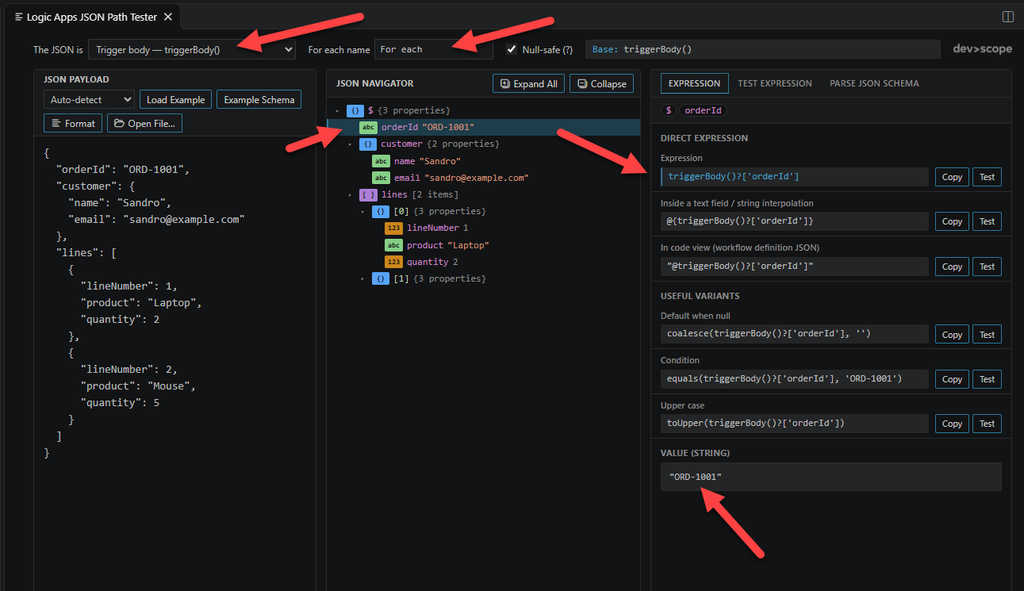
That’s it. And more importantly, the generated expression understands that you are working with Azure Logic Apps.
Start with the JSON payload
The first part of the experience is the JSON payload itself. You can paste JSON directly into the editor or open a JSON file.
For example:
{
  "orderId": "ORD-1001",
  "customer": {
    "name": "Sandro",
    "email": "sandro@example.com"
  },
  "lines": [
    {
      "lineNumber": 1,
      "product": "Laptop",
      "quantity": 2
    },
    {
      "lineNumber": 2,
      "product": "Mouse",
      "quantity": 5
    }
  ]
}
The editor can then represent that document visually through the JSON Navigator.
Instead of manually inspecting braces, arrays, and nested objects, we can navigate through the document as a tree. For our example, the structure becomes conceptually:
orderId
customer
    name
    email
lines
    [0]
        lineNumber
        product
        quantity
    [1]
        lineNumber
        product
        quantity
Select the value you want, and the tool can help with the expression.
From a JSON property to a Logic Apps expression
Let’s select: lines → [0] → lineNumber
If our JSON comes from a Parse JSON action, the direct Logic Apps expression can be:
body('Parse_JSON')?['lines']?[0]?['lineNumber']
This is the important difference between this tool and a generic JSON Path tester.
We aren’t only showing something like:
$.lines[0].lineNumber
That isn’t what I ultimately need when building my workflow. I need the expression I can actually use inside Logic Apps.
Different places need different expression formats
Another common annoyance with Logic Apps is that the same value may need to be represented slightly differently depending on where we want to use it.
For example, our direct expression may be:
body('Parse_JSON')?['lines']?[0]?['lineNumber']
But if we need to use the same value inside text interpolation, we may need:
@{body(‘Parse_JSON’)?[‘lines’]?[0]?[‘lineNumber’]}
And inside the underlying workflow definition JSON, the representation is different again. These aren’t difficult concepts. But they are exactly the type of small details developers should not need to remember or manually construct every single time.
The Logic Apps JSON Path Tester provides these variations directly from the selected JSON property.
Working with For each
Arrays are probably where this becomes even more useful. Suppose we want to:
- Process: lines
- Using a
For each. where we define that the array will be lines. Then, inside theFor each, we want to retrieve the lineNumber
Now our expression becomes:
items('For_each')?['lineNumber']
Or when working with the innermost loop:
item()?['lineNumber']
The JSON hasn’t changed. The property hasn’t changed. But the expression depends on where we are using it in the workflow.
That’s why understanding the Logic Apps context matters.
The tool allows us to specify the For each name and provides expressions appropriate for that context.
Null-safe access
Another important consideration is optional data. Anyone who has built production integrations knows that the payload we receive isn’t always exactly what we expected:
- Perhaps
linesis missing. - Perhaps
lineNumberisn’t present. - Perhaps the API returns
null.
Logic Apps provides the null-safe operator ? for these scenarios.
So instead of blindly accessing:
body('Parse_JSON')['lines'][0]['lineNumber']
we may use:
body('Parse_JSON')?['lines']?[0]?['lineNumber']
The Logic Apps JSON Path Tester can generate expressions with null-safe navigation, making it easier to produce expressions suitable for real-world workflows.
Generate useful expression variants
Sometimes accessing the value isn’t enough. We may also need to transform it or provide a fallback value.
For example, we may want a default when the property is null:
coalesce(
    body('Parse_JSON')?['lines']?[0]?['lineNumber'],
    0
)
Or explicitly convert the value to an integer:
int(
    body('Parse_JSON')?['lines']?[0]?['lineNumber']
)
Perhaps we want to evaluate a condition:
greater(
    body('Parse_JSON')?['lines']?[0]?['lineNumber'],
    1
)
These are common Logic Apps development scenarios. The goal isn’t simply to tell developers where the JSON value exists.
The goal is to help turn that value into a usable Logic Apps expression.
Test before putting it into the workflow
Generating the expression is one part of the experience. Being able to test it immediately is equally important.
One of the most frustrating development cycles is:
- Write an expression.
- Add it to the workflow.
- Save the Logic App.
- Run the workflow.
- Inspect the run history.
- Discover the expression is wrong.
- Change it.
- Run everything again.
Sometimes that is unavoidable. But we shouldn’t need this development cycle simply to determine whether:
body('Parse_JSON')?['lines']?[0]?['lineNumber']
returns: 1
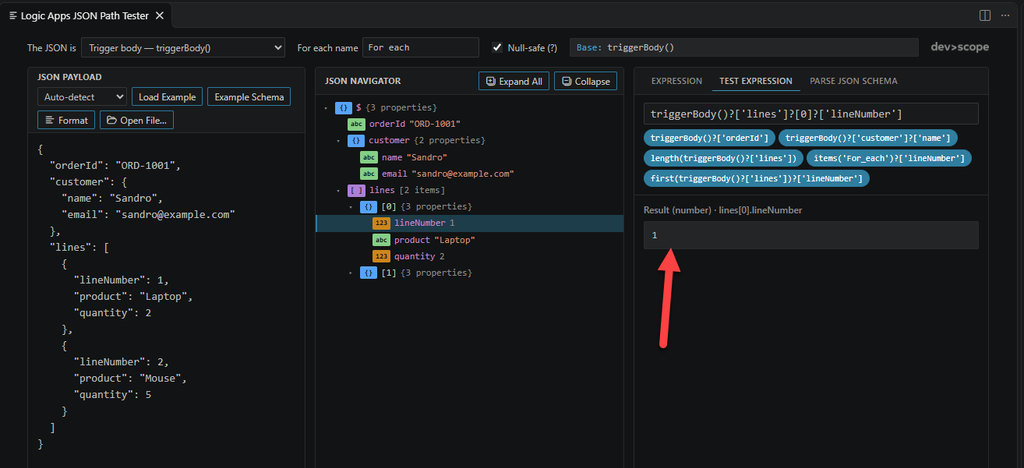
The Logic Apps JSON Path Tester allows us to test the expression against the JSON payload immediately. Once we know it works, we can use it in our workflow.
It isn’t just a generic JSONPath tester
There are already many JSONPath testers available online. And many are excellent at what they do.
But this tool has a slightly different purpose. It isn’t trying to answer only: Where is this value inside the JSON?
It is trying to answer: How do I access this JSON value inside my Logic App?
That subtle difference is important.
The tool understands concepts that are relevant to a Logic Apps developer:
- Action names;
body();- Nested JSON objects;
- Arrays and indexes;
- Null-safe navigation;
For each;items();item();- String interpolation;
- Workflow definition expressions;
coalesce();- Type conversion;
- Conditions.
This makes the tool less about JSONPath itself and much more about improving the Logic Apps developer experience.
And once again: keep your data local
There is another important advantage to having this capability directly inside Visual Studio Code:
- Privacy.
When troubleshooting JSON, it is tempting to search for an online JSON viewer, formatter, parser, or JSONPath tester and paste the payload into it. That’s fine for synthetic examples. But enterprise payloads can contain:
- Customer information;
- Email addresses;
- Orders;
- Invoices;
- Employee information;
- Financial information;
- Internal identifiers;
- Authentication-related information;
- Other sensitive business data.
We shouldn’t need to send that information to an external website just to determine how to access a JSON property.
With the DevScope Integration Toolkit, the JSON can stay inside your local development environment.
That gives us both a better development workflow and a safer way to work with real integration payloads.
Making Logic Apps development easier inside Visual Studio Code
This is ultimately what the DevScope Integration Toolkit is about. Although Azure Logic Apps is an incredibly powerful integration platform, there are still many small areas of the developer experience where better tooling can save us time. Finding the correct expression to access a JSON value is one of them.
It isn’t a revolutionary problem, nor is it something that will completely change how we design integration architectures. Instead, it is simply one of those tasks we perform over and over again, and those are precisely the tasks where good developer tooling makes a difference.
With the Logic Apps JSON Path Tester, we can visually navigate our JSON payload, select the value we need, understand the corresponding Logic Apps expressions, test them, and copy the correct expression directly into our workflow.
As a result, there is no guessing, no constantly switching between Logic Apps, documentation, and online tools, and no repeatedly running the workflow simply to test an expression. Moreover, there is no need to expose potentially sensitive JSON payloads to external services.
Ultimately, it is just another small tool designed to make the life of a Logic Apps developer a little easier.
Download
The DevScope Integration Toolkit brings several Azure Integration Services and BizTalk-oriented development capabilities into VS Code.
DevScope Integration Toolkit is one integration toolbox that brings many of the developers’ needs:
- Visual Data Mapper
- Visual XSD Editor
- Visual JSON Schema Editor
- Flat File Wizard
- Schema Validator
- Workflow Diff
- XPath Tester
- Logic Apps JSON Path Tester
- Schema to C#
All integrated into Visual Studio Code.
Hope you find this helpful! If you liked the content or found it useful and would like to support me in writing more, consider buying (or helping to buy) a Star Wars LEGO set for my son.