
Working with JSON has become part of almost every modern integration solution. Whether we are building integrations with Azure Logic Apps, exposing or consuming APIs through Azure API Management, processing messages from Azure Service Bus, or simply exchanging JSON documents between systems, at some point we need to answer a very simple question:
Is this JSON document actually valid against my JSON Schema?
It sounds like a basic requirement. And it is. But basic doesn’t mean unimportant.
Integration developers need to perform these small operations constantly:
- Open a schema.
- Try to get a sample JSON message.
- Try to validate it.
- Find an error.
- Change the message or the JSON Schema.
- And try to validate it again.
When these capabilities aren’t available directly inside our development environment, we end up jumping between Visual Studio Code, browser-based validators, command-line utilities, or other applications.
And honestly, we shouldn’t need to.
The DevScope Integration Toolkit removes this friction and brings everyday integration capabilities directly into Visual Studio Code.
Today, I want to introduce another useful capability available in the toolkit: JSON Schema Validation directly in Visual Studio Code.

The goal is simple: allow integration developers to quickly validate a JSON document against a JSON Schema without leaving Visual Studio Code or relying on external websites or additional utilities.
📝 One-Minute Brief
The DevScope Integration Toolkit for Visual Studio Code includes a JSON Schema Validator that allows integration developers to validate JSON documents against JSON Schemas without leaving the IDE.
It provides a simple visual experience where the JSON document and its corresponding schema can be reviewed together, while validation results help developers quickly identify structural and data validation problems.
For developers building Azure Logic Apps, APIs, messaging solutions, or other JSON-based integrations, it provides a convenient way to test and troubleshoot JSON messages during development.
Why do we need a JSON Schema Validator?
JSON is everywhere. Most modern APIs use it. Azure Logic Apps uses it extensively. Messages exchanged through Azure Service Bus frequently use JSON. REST APIs almost always expose or consume JSON payloads.
But having a JSON document that is syntactically correct doesn’t necessarily mean that the document is valid for the integration scenario.
The difference is important.
A document like this:
{
  "orderNumber": "PO-10001",
  "quantity": "10"
}
is perfectly valid JSON.
But imagine that our schema expects quantity to be an integer instead of a string. The document is valid JSON, but it is not valid against the JSON Schema.
During development and testing, we constantly need to answer questions like:
- Is the JSON document syntactically correct?
- Are all required properties present?
- Are property names correct?
- Are the values using the expected data types?
- Are arrays and objects structured correctly?
- Are enumeration values respected?
- Are numeric or string restrictions respected?
- Are additional properties allowed?
- Does the payload actually conform to the contract expected by the integration?
A tiny difference between the JSON document and the schema may cause the message to fail later inside a Logic App, API, Azure Function, or another downstream system.
Of course, there are plenty of external websites capable of validating JSON against a JSON Schema. But again, if we are developing our integration solution inside Visual Studio Code:
Why should we leave the IDE just to validate a JSON document?
We shouldn’t.
JSON Schema Validator
The JSON Schema Validator available in the DevScope Integration Toolkit provides a simple visual interface for validating a JSON document against a JSON Schema directly inside Visual Studio Code.
The idea is very similar to the XSD Schema Validator already available in the toolkit.
You provide:
- The JSON document you want to validate.
- The JSON Schema describing the expected structure.
- Click Validate.
The toolkit then validates the document and displays the results directly inside Visual Studio Code.
This provides a very simple development loop:
- JSON → Validate → Fix → Validate again
without switching applications.
Validate JSON directly against a JSON Schema
The primary purpose of the tool is, of course, JSON Schema validation.
Imagine that we have the following JSON document:
{
  "customer": {
    "name": "Ana",
    "email": "ana.example.com",
    "vatNumber": "12345"
  },
  "status": "CANCELLED",
  "orderDate": "2026-02-30",
  "items": [
    { "sku": "A-100", "quantity": 2 },
    { "sku": "B-200", "quantity": -3 }
  ],
  "notes": "Leave at the door"
}
And a JSON Schema defining the structure and constraints expected by our integration. We can load both into the validator and click Validate.
If everything is correct, the validation result confirms that the document conforms to the schema.
Exactly what we want to see! But of course, things become more interesting when something is wrong.
Finding JSON Schema validation errors
Knowing that a JSON document is invalid is useful. Knowing why it is invalid is much more useful.
Imagine that our schema defines id as an integer:
{
  "$schema": "https://json-schema.org/draft/2020-12/schema",
  "title": "Order",
  "type": "object",
  "required": ["id", "customer", "status", "items"],
  "additionalProperties": false,
  "properties": {
    "id": { "type": "integer", "minimum": 1 },
    "customer": {
      "type": "object",
      "required": ["name", "email"],
      "properties": {
        "name": { "type": "string", "minLength": 1 },
        "email": { "type": "string", "format": "email" },
        "vatNumber": { "type": "string", "pattern": "^[0-9]{9}$" }
      }
    }, ...
But our incoming message doesn’t contain it:
{
  "customer": {
    "name": "Ana",
    "email": "ana.example.com",
    "vatNumber": "12345"
  }, ...
Visually, this is very easy to miss.
The JSON is syntactically valid. Nothing looks particularly wrong when we open it.
But according to the contract defined by the JSON Schema, the document is invalid.
And this is precisely where schema validation becomes useful.

Other common problems include:
- a required property is missing;
- a property contains the wrong data type;
- an enumeration contains an unsupported value;
- a number is outside the allowed range;
- a string doesn’t match the expected format or pattern;
- an array contains invalid items;
- an object contains properties that aren’t allowed;
- or a nested structure doesn’t conform to the schema.
Instead of discovering these problems while executing the integration workflow, we can identify them much earlier during development.
That makes troubleshooting considerably easier. In some cases, it also provides a suggested fix:

And if you apply it, it will apply that fix in the XML message:

Work with JSON and JSON Schema side by side
One of the things I like about these tools is that the experience is intentionally simple. We don’t need a complicated interface.
What we need is to see:
- the JSON document;
- the JSON Schema;
- and the validation results.
Together. This makes it much easier to compare the payload against its expected structure and immediately understand why validation may be failing.
It is particularly useful when working with larger integration contracts where manually comparing a JSON document with its schema becomes difficult.
Make a change.
Validate.
Fix another issue.
Validate again.
Everything stays inside the development environment.
Generate a sample JSON from the JSON Schema
Another capability that I particularly like is the possibility of generating a JSON instance directly from the JSON schema.
From the XSD panel, we can simply click: Generate Sample JSON
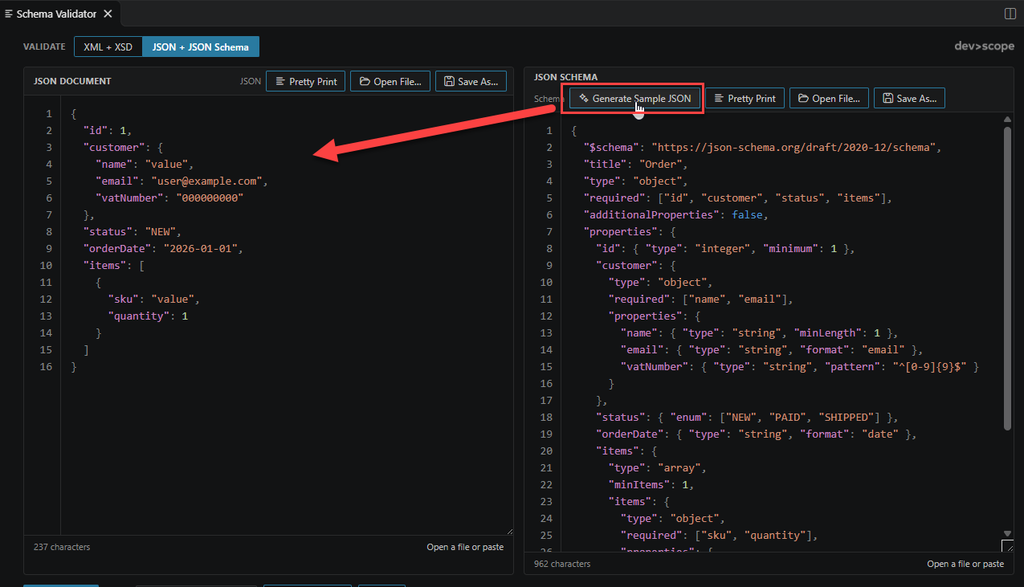
The toolkit analyses the schema and creates a sample JSON document based on its structure.
That sample is automatically placed in the JSON editor and can immediately be validated against the schema.
This provides a very convenient development workflow: JSON Schema → Generate Sample JSON → Adjust values → Validate
And this becomes especially useful when we receive a schema from another team, application, partner, or external system but don’t yet have a representative JSON message to test with.
Instead of manually reading the schema and building the corresponding JSON structure, the toolkit gives us a starting point immediately.
Of course, generated values are placeholders. The objective is to provide the expected structure so that we can replace those values with meaningful test data.
Save the validation report
Another useful capability is the option to Save Report…

After validating the JSON document, the results can be saved instead of existing only inside the Visual Studio Code interface.
That may sound like a small feature, but it can be useful when troubleshooting integration scenarios where validation errors need to be shared with another developer, application team, external partner, or customer.
It also provides a simple way of keeping evidence of the validation performed during development or troubleshooting.
Built-in examples
If you simply want to understand how the validator works, you don’t even need to have a JSON or JSON Schema file available.
The Load Example option populates the validator with a sample JSON document and corresponding JSON schema.
From there, you can immediately run the validation and experiment with the tool. For example, remove a mandatory element, change the structure, or introduce an invalid value and execute the validation again.
It is probably the quickest way to understand how the validator behaves.
Download
The DevScope Integration Toolkit brings several Azure Integration Services and BizTalk-oriented development capabilities into Download
DevScope Integration Toolkit is one integration toolbox that brings many of the developers’ needs:
- Visual Data Mapper
- Visual XSD Editor
- Visual JSON Schema Editor
- Flat File Wizard
- Schema Validator
- Workflow Diff
- XPath Tester
- Logic Apps JSON Path Tester
- Schema to C#
All integrated into Visual Studio Code.
Download DevScope Integration Toolkit
Hope you find this helpful! If you liked the content or found it useful and would like to support me in writing more, consider buying (or helping to buy) a Star Wars LEGO set for my son.