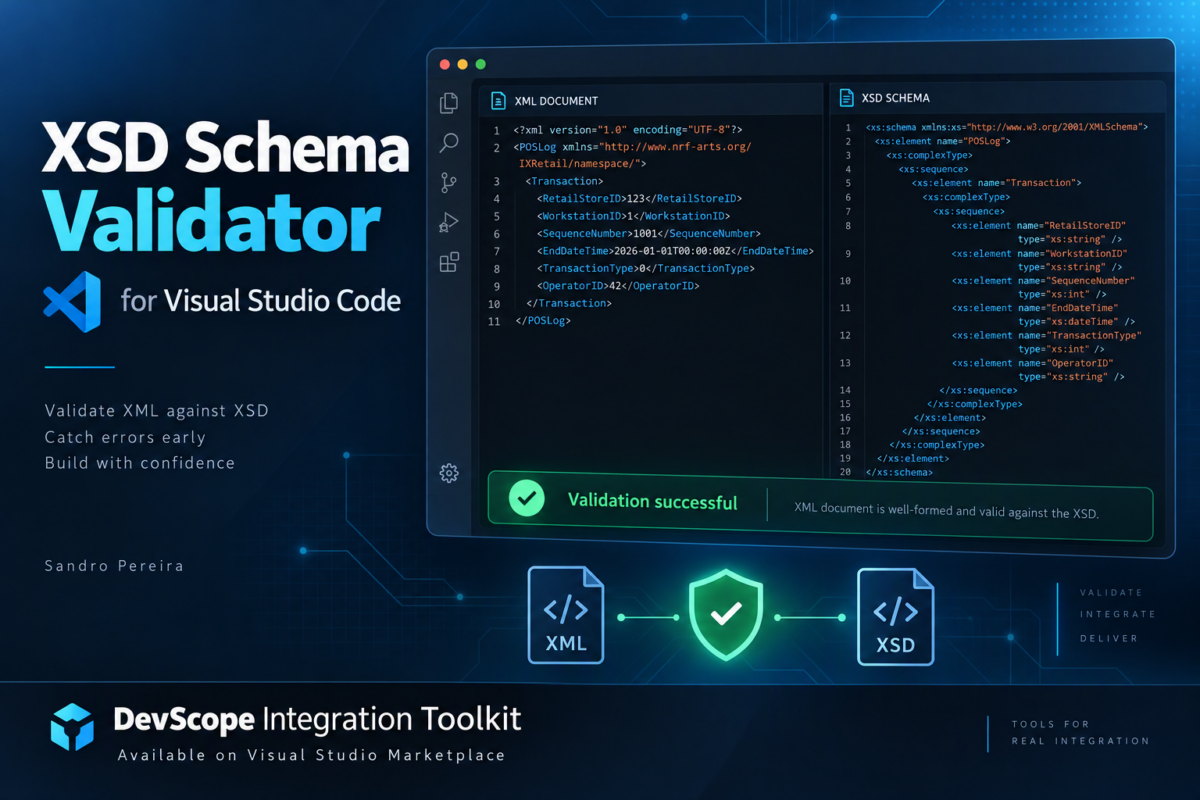
Working with XML schemas is a fundamental part of many enterprise integration solutions. Whether we are building integrations with Azure Logic Apps, maintaining existing BizTalk Server solutions, or simply exchanging XML documents between systems, at some point we need to answer a very simple question:
- Is this XML document actually valid against my XSD schema?
For years, developers working with BizTalk Server had several tools and development-time capabilities in Visual Studio to test schemas and validate XML instances. However, when moving our integration development experience to Visual Studio Code, especially with Logic Apps Standard, some of these convenient capabilities are no longer available out of the box.
Schema validation isn’t a new concept, and it definitely isn’t something revolutionary.
But that’s not really the point.
Integration developers perform these small operations constantly:
- Open a schema.
- Get a sample message.
- Validate it.
- Find an error.
- Change the message.
- Validate it again.
When these capabilities aren’t available inside our development environment, we end up jumping between Visual Studio Code, browser-based validators, command-line utilities, or other applications.
For developers working with Azure Logic Apps Standard, XML-based APIs, or migrating existing BizTalk Server solutions, having an XSD validation experience available directly inside Visual Studio Code is another small but important step toward a more complete integration development experience.
The purpose of the DevScope Integration Toolkit is precisely to remove this friction and bring these everyday integration capabilities directly into Visual Studio Code.
Today, I want to introduce another useful capability in the toolkit: XSD Schema Validation directly in Visual Studio Code.

The goal is simple: allow integration developers to quickly validate an XML document against an XML Schema (XSD) without leaving Visual Studio Code or relying on external websites or additional utilities.
📝 One-Minute Brief
The DevScope Integration Toolkit for Visual Studio Code includes an XSD Schema Validator that allows integration developers to validate XML documents against XSD schemas without leaving the IDE. It provides side-by-side XML and XSD editors, sample XML generation, XML pretty printing, file open/save options, detailed validation results, and validation report export. For Azure Logic Apps Standard and BizTalk Server migration scenarios, it provides a simple way to test and troubleshoot XML messages during development.
Why do we need an XSD Schema Validator?
If you work with enterprise integration, you know that having an XSD schema is only part of the story. During development and testing, we constantly need to validate real or sample messages against that schema.
Typical questions include:
- Is the XML document well-formed?
- Does the root element match the schema?
- Are all mandatory elements present?
- Are the elements in the correct sequence?
- Are the namespaces correct?
- Are the values compatible with the XSD data types?
- Does the XML respect
minOccursandmaxOccurs? - Are enumeration or other schema restrictions respected?
A tiny difference between the XML document and the schema can cause a message to fail later inside a Logic App, BizTalk Server, an API, or another downstream system.
Of course, there are external tools and websites capable of validating XML against an XSD. But when we are developing an integration solution in Visual Studio Code, why should we leave the IDE just to do such a basic task?
We shouldn’t.
XSD Schema Validator
The Schema Validator available in the DevScope Integration Toolkit provides a simple visual interface where we can have our XML document and XSD schema side by side and validate them directly inside Visual Studio Code.
The interface is divided into three main areas:
- XML Document on the left.
- XSD Schema on the right.
- Validation Results at the bottom.
This makes it extremely easy to understand what we are validating and immediately see the result.

In the examples shown above, the first XML document is successfully validated against the XSD, and the validator reports:
No problems found. The XML document is well-formed and conforms to the XSD.
Exactly what we want to see!
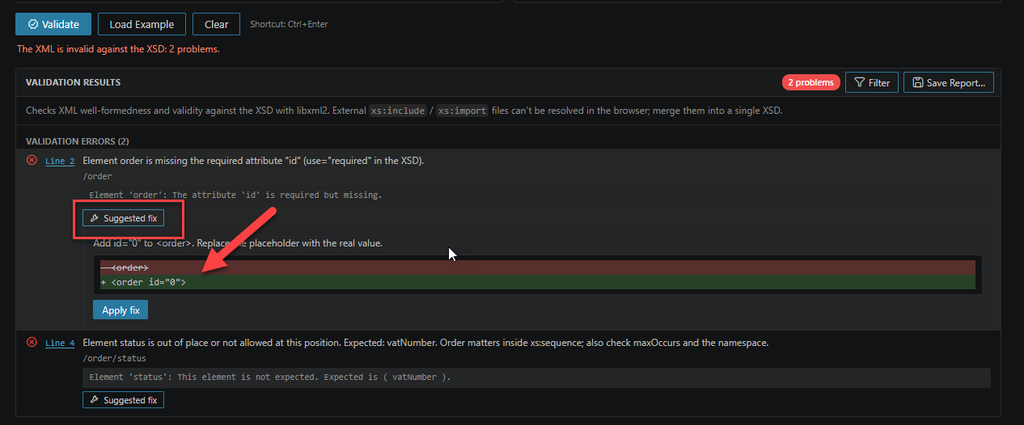
But the last one is getting issues, and then the Validation results panel is showing all the issues it was able to identify.
Validate XML directly against an XSD
The primary purpose of this tool is, of course, schema validation.
You provide:
- The XML instance you want to validate.
- The XSD schema that describes the expected XML structure.
- Click Validate.
The validator checks the XML document against the supplied XSD schema and displays the results directly in the Validation Results panel.
This is particularly useful while developing or troubleshooting integration processes because we can quickly modify the XML or XSD and validate the document again without switching applications.
Knowing that an XML document is invalid is useful. Knowing why the XML document is invalid is much more useful.
When validation fails, the Validation Results section reports the problems detected during validation, helping us identify where the XML does not conform to the XSD.
This is important because XML Schema validation problems are not always visually obvious.
For example, an XML document may look perfectly valid but still fail because:
- an element appears in the wrong position;
- a required element is missing;
- an unexpected element is present;
- a namespace is incorrect;
- a value doesn’t match the expected XSD type;
- an enumeration value isn’t allowed;
- or the number of element occurrences violates the schema definition.
Instead of discovering these problems only when executing the integration workflow, we can detect them much earlier during development.
And that is exactly where this type of tooling adds value. In some cases, it also provides a suggested fix:
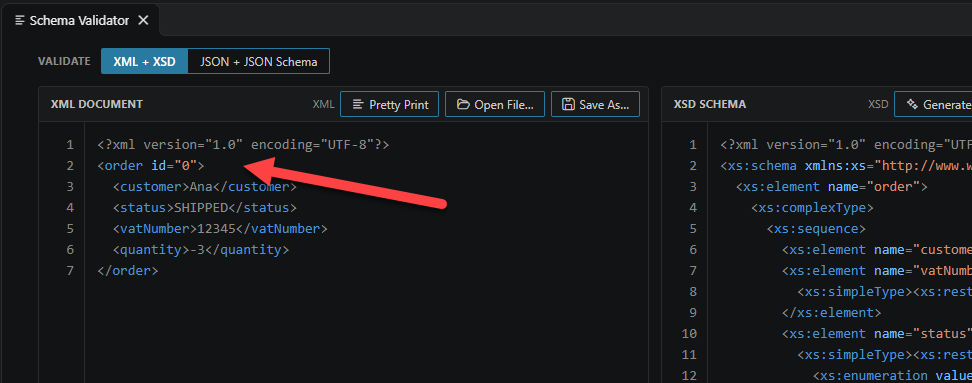
And if you apply it, it will apply that fix in the XML message:
Generate a sample XML from the XSD
Another capability that I particularly like is the possibility of generating an XML instance directly from the XSD schema.
From the XSD panel, we can simply click: Generate Sample XML

The toolkit analyses the schema and creates a sample XML document based on its structure.
That sample is automatically placed in the XML editor and can immediately be validated against the schema.
This provides a very convenient development workflow: XSD → Generate Sample XML → Adjust values → Validate
And this becomes especially useful when we receive an XSD from another team, application, partner, or external system but don’t yet have a representative XML message to test with.
Instead of manually reading the schema and building the corresponding XML structure, the toolkit gives us a starting point immediately.
Of course, generated values are placeholders. The objective is to provide the expected structure so that we can replace those values with meaningful test data.
Save the validation report
Another useful capability is the option to Save Report…

After validating the XML document, the results can be saved instead of existing only inside the Visual Studio Code interface.
That may sound like a small feature, but it can be useful when troubleshooting integration scenarios where validation errors need to be shared with another developer, application team, external partner, or customer.
It also provides a simple way of keeping evidence of the validation performed during development or troubleshooting.
Built-in examples
If you simply want to understand how the validator works, you don’t even need to have an XML or XSD file available.
The Load Example option populates the validator with a sample XML document and corresponding XSD schema.
From there, you can immediately run the validation and experiment with the tool.
For example, remove a mandatory element, change the structure, or introduce an invalid value and execute the validation again.
It is probably the quickest way to understand how the validator behaves.
Download
The DevScope Integration Toolkit brings several Azure Integration Services and BizTalk-oriented development capabilities into Download
DevScope Integration Toolkit is one integration toolbox that brings many of the developers’ needs:
- Visual Data Mapper
- Visual XSD Editor
- Visual JSON Schema Editor
- Flat File Wizard
- Schema Validator
- Workflow Diff
- XPath Tester
- Logic Apps JSON Path Tester
- Schema to C#
All integrated into Visual Studio Code.
Hope you find this helpful! If you liked the content or found it useful and would like to support me in writing more, consider buying (or helping to buy) a Star Wars LEGO set for my son.