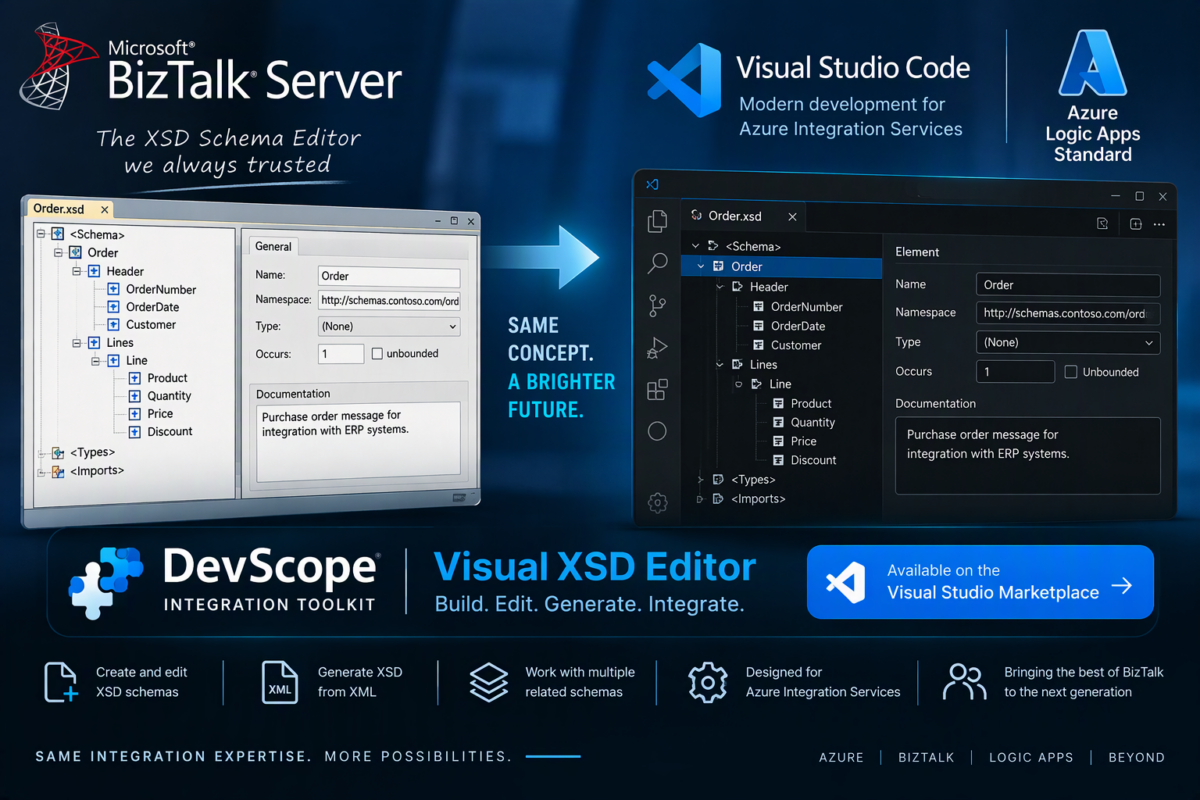
For more than two decades, BizTalk developers have relied on one deceptively powerful tool: the BizTalk XSD Schema Editor.
It was never the most glamorous part of BizTalk Server. Maybe it didn’t get the attention of orchestrations, maps, adapters, or pipelines. But anyone who has spent years building integration solutions knows how important it is to have a good visual experience for designing and maintaining XML schemas.
And as organizations move integration workloads from BizTalk Server to Azure Logic Apps Standard, one thing becomes obvious:
We still need a proper visual XSD Schema Editor.
Not as a standalone legacy tool.
Not by keeping Visual Studio and the BizTalk development tools installed just because we need to modify an XSD.
We need it where we build modern Azure integration solutions today: inside Visual Studio Code.
📝 One-Minute Brief
Discover why Azure Logic Apps Standard developers still need a visual XSD Schema Editor and how the DevScope Integration Toolkit brings the familiar BizTalk Schema Editor experience to Visual Studio Code for creating and maintaining enterprise XML schemas.
We Need a BizTalk-like XSD Schema Editor for Azure Logic Apps Standard and VS Code
And although I am a strong advocate for modernizing integration platforms, modernization shouldn’t mean throwing away every good developer experience we previously had.
The BizTalk Schema Editor solved a real problem.
- It made complex integration schemas understandable.
- It made them easier to create.
- It made them easier to maintain.
- And it allowed developers to focus on the message contract, rather than spending their time fighting XSD syntax.
As we move toward Azure Logic Apps Standard and Visual Studio Code, that requirement hasn’t disappeared.
If anything, the combination of XML, JSON, APIs, flat files, cloud services, SaaS platforms, and legacy systems means we need good integration tooling more than ever.
That is why I believe a proper XSD Schema Editor belongs in the Logic Apps Standard developer toolbox.
And this is one of the capabilities that the DevScope Integration Toolkit – Visual Studio Marketplace is bringing to Azure Integration Services developers. The extension includes a Visual XSD Editor specifically designed to build and edit .xsd schemas as a tree, in the style of the BizTalk Schema Editor
The objective isn’t to bring BizTalk back.
It is to bring forward the best integration development experiences we learned from BizTalk and make them available for the next generation of Azure Integration Services solutions.
And a proper visual XSD Schema Editor is absolutely one of them, because:
- XML didn’t disappear because we moved to Azure.
- Neither did XSD.
- Enterprise integration solutions still have plenty of:
- XML messages
- XSD schemas
- SAP messages
- ERP integrations
- SOAP services
- EDI integrations
- flat files
- legacy systems
- B2B interfaces
- Azure Logic Apps also supports schemas as integration artifacts.
So the requirement didn’t disappear.
Only the development experience changed.
Yes, we can edit XSD as code
Of course, we can open an .xsd file directly in Visual Studio Code.
And to be fair, experienced integration developers can work perfectly well with raw XSD.
I do it myself.
We can manually create:
<xs:element name="Order">
    <xs:complexType>
        <xs:sequence>
            <xs:element name="OrderId"
                        type="xs:string" />
            <xs:element name="Lines"
                        minOccurs="0">
                ...
            </xs:element>
        </xs:sequence>
    </xs:complexType>
</xs:element>
And today, with tools such as GitHub Copilot, creating the initial structure is considerably easier.
But that doesn’t mean a text editor is always the best tool for understanding or maintaining a schema.
There is a significant difference between being able to modify XSD and having a productive XSD development experience.
Complex XSDs are difficult to understand as text
Take a small schema with five elements.
Raw XSD is fine.
Now take a real enterprise schema containing:
- hundreds of elements
- nested
complexTypedefinitions - repeating records
- optional elements
- attributes
- sequences
- choices
- type references
- imported schemas
- shared definitions
Suddenly, understanding this:
<xs:complexType>
inside several hundred or several thousand lines of XML is not quite as enjoyable.
What we really want to understand is:
Order
 ├── Header
 │   ├── OrderNumber
 │   ├── OrderDate
 │   └── Customer
 │
 └── Lines
     └── Line [0..*]
         ├── Product
         ├── Quantity
         ├── Price
         └── Discount
That is why the old BizTalk Schema Editor worked so well.
It allowed us to think about the message instead of the XSD syntax.
Visual tools aren’t only for people who don’t know XSD
Sometimes there is a misconception that graphical designers are intended for junior developers who don’t understand the underlying technology.
I completely disagree.
I know XSD.
I can edit XSD manually.
But given a complex enterprise schema, I would still rather have a visual representation available.
Why?
Because graphical representations are excellent for understanding structure.
Code is excellent for precision.
The ideal development experience gives us both.
That is exactly what we had with BizTalk.
And it is exactly what we should expect when developing Azure Logic Apps integrations in Visual Studio Code.
Bringing that Visual XSD Editor experience to Visual Studio Code
This is precisely where the DevScope Integration Toolkit comes into the picture.
One of its capabilities is a Visual XSD Editor that lets us build and edit XML Schema .xsd files using a tree representation inspired by the BizTalk Schema Editor.
In other words, instead of forcing Azure Integration Services developers to choose between raw XSD or going back to old BizTalk/Visual Studio tooling we can bring the visual schema experience directly into our current development environment: Visual Studio Code.
Create and Edit XSD Schemas
The idea behind the Visual XSD Editor is very familiar to anyone coming from BizTalk Server.
Open an .xsd file and work with the schema through a visual tree.

Conceptually:

Instead of mentally reconstructing that hierarchy from hundreds of lines of XSD, the structure becomes immediately visible.
The editor is designed specifically to build (create new) and edit XML Schemas as a tree in the style of the BizTalk Schema Editor. And there is another important capability:
- The editor can also generate an XSD from an XML message.

That is an extremely common integration scenario where someone gives you a sample XML payload and says:
“This is what the ERP sends.”
Instead of manually creating the initial schema from scratch, we have a starting point that can then be reviewed and refined visually.
Working with multiple related XSDs
Real enterprise XSDs rarely live completely in isolation. In many integration scenarios, schemas depend on other schemas through constructs such as:
<xs:import />
and
<xs:include />
In addition, schemas often reference types and elements defined in separate XSD files. This approach is particularly common with:
- industry-standard schemas
- ERP integrations
- SOAP services
- B2B scenarios
- large canonical data models
As a result, managing these dependencies manually can quickly become frustrating, especially when several schemas need to be changed together.
Fortunately, the DevScope Integration Toolkit Visual XSD Editor supports multiple related schemas. Therefore, schemas that import or reference one another can be opened, edited, and saved together.

This capability makes it much easier to work with complex enterprise schema structures directly inside Visual Studio Code. And very important if the goal is to support real enterprise integration schemas, rather than only simple demonstrations.
Download
DevScope Integration Toolkit is one integration toolbox that brings many of the developers needs:
- Visual Data Mapper
- Visual XSD Editor
- Visual JSON Schema Editor
- Flat File Wizard
- Schema Validator
- Workflow Diff
- XPath Tester
- Logic Apps JSON Path Tester
- Schema to C#
all integrated into Visual Studio Code.
Get the DevScope Integration Toolkit for VS Code:
Hope you find this helpful! If you liked the content or found it useful and would like to support me in writing more, consider buying (or helping to buy) a Star Wars LEGO set for my son.