

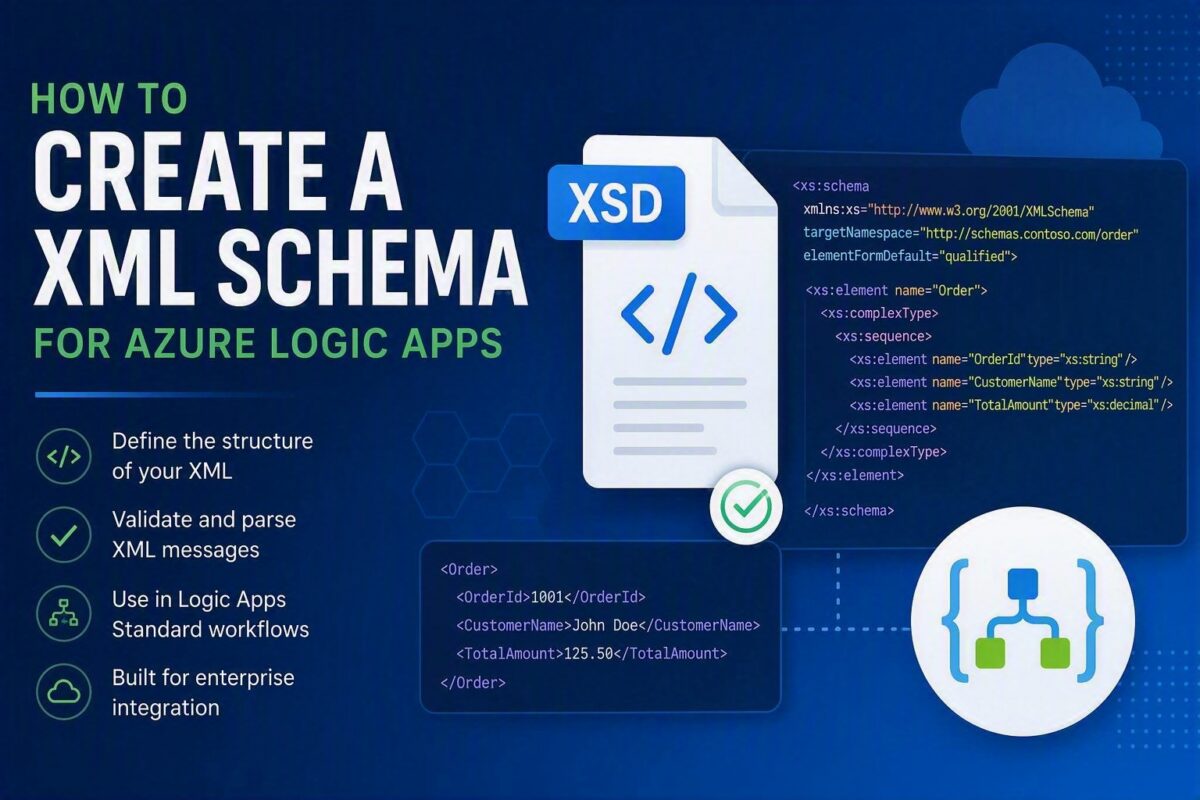
In enterprise integration, XML remains one of the most common message formats exchanged between applications. Whether you are integrating ERP systems, processing invoices, handling purchase orders, or migrating BizTalk Server solutions to Azure Integration Services, sooner or later you will need to create and use XML Schemas (XSD) in your Logic Apps.
XML Schemas are the standard way to define the structure of XML documents and are used by several Logic Apps XML capabilities such as XML Validation and Parse XML with Schema.
If you have worked with BizTalk Server for years, creating XML Schemas was always straightforward. You simply opened Visual Studio, added a schema, used the graphical designer, and quickly defined your message structure. However, when you move to Azure Logic Apps Standard, things are a little different.
One of the first surprises many integration developers encounter is that Visual Studio Code does not provide a visual designer for creating XML Schemas. While VS Code is the primary development environment for Logic Apps Standard, it currently lacks the tooling required to graphically design and maintain XSD schemas.
So, how do you create XML Schemas for your Logic Apps Standard projects?
The answer is simple: you need Visual Studio 2019 together with the Azure Integration Account extension.
In this article, I’ll explain why this is necessary, how to create an XML Schema, and how to use it inside your Logic Apps Standard projects.
📝 One-Minute Brief
Creating XML Schemas (XSD) for Logic Apps Standard can be challenging because Visual Studio Code does not include a graphical schema designer. While schemas can technically be authored manually, this quickly becomes impractical for anything beyond simple structures. In this article, I explain why Visual Studio 2019 together with the Azure Integration Account extension remains the preferred approach for creating XML Schemas, how to generate schemas from sample XML documents, and how to incorporate those schemas into your Logic Apps Standard projects running in VS Code.
Why Do We Need XML Schemas?
An XML Schema, also known as an XSD (XML Schema Definition), acts as a contract between applications.
Instead of simply exchanging XML documents, systems exchange documents that conform to a predefined structure. This allows both the sender and receiver to validate messages and ensure data integrity.
Consider the following XML message:
<Order xmlns="http://schemas.sandro-pereira.com/order">
    <OrderId>1001</OrderId>
    <CustomerName>John Doe</CustomerName>
    <TotalAmount>125.50</TotalAmount>
</Order>
Without an XML schema, there is no guarantee that:
- All required fields exist.
- Data types are correct.
- Elements appear in the correct order.
- The document follows the expected format.
By introducing an XSD schema, Logic Apps can validate incoming documents before processing them, preventing downstream errors and reducing troubleshooting efforts.
What Does an XML Schema Look Like?
The following example defines a simple Order message:
<?xml version="1.0" encoding="utf-8"?>
<xs:schema
    xmlns:xs="http://www.w3.org/2001/XMLSchema"
    targetNamespace="http://schemas.sandro-pereira.com/order"
    elementFormDefault="qualified">

    <xs:element name="Order">
        <xs:complexType>
            <xs:sequence>
                <xs:element name="OrderId" type="xs:string"/>
                <xs:element name="CustomerName" type="xs:string"/>
                <xs:element name="TotalAmount" type="xs:decimal"/>
            </xs:sequence>
        </xs:complexType>
    </xs:element>

</xs:schema>
This schema specifies:
- The root element is
Order. OrderIdandCustomerNameare strings.TotalAmountis a decimal value.- Elements must appear in the defined order.
This approach provides a strongly defined message structure that Logic Apps can understand and validate.
Why You Need Visual Studio 2019
Logic Apps Standard includes built-in support for XML validation and XML transformations, and Consumption supports the same capabilities through the built-in Integration Account capabilities. These features rely on XML Schemas (XSDs) to validate incoming messages and to provide schema-aware transformations.
Although Logic Apps Standard development happens in VS Code, there is currently no graphical schema designer available.
This means that you cannot:
- Create schemas visually in VS Code
- or edit complex XML structures through a graphical designer
Technically, an XML Schema is just an XML file. Therefore, you could create one manually in VS Code in clear text. However, just because you can does not mean you should.
For very simple schemas, this might be manageable. But as soon as namespaces, complex types, repeating records, restrictions, attributes, imports, or schema includes enter the picture, manually creating and maintaining XSDs quickly becomes error-prone.
That is why I strongly recommend using Visual Studio 2019 with the Azure Integration Account extension.
Installing the Required Tools
Before creating schemas, make sure you have:
- Visual Studio 2019
- Azure Logic Apps Enterprise Integration Tools for Visual Studio 2019
You can install the extension from the Visual Studio Marketplace.
Once installed, Visual Studio provides the familiar XML Schema Designer experience many BizTalk Server developers already know.
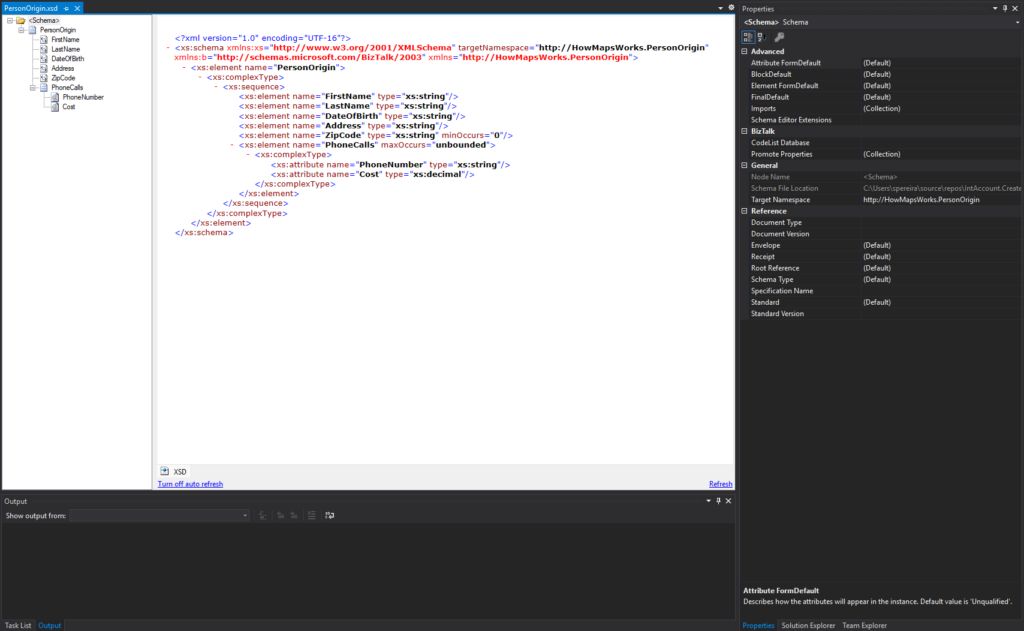
Creating an XML Schema from Scratch
Creating an XML schema from scratch in Visual Studio 2019 is straightforward.
To create a new schema:
- Open Visual Studio 2019.
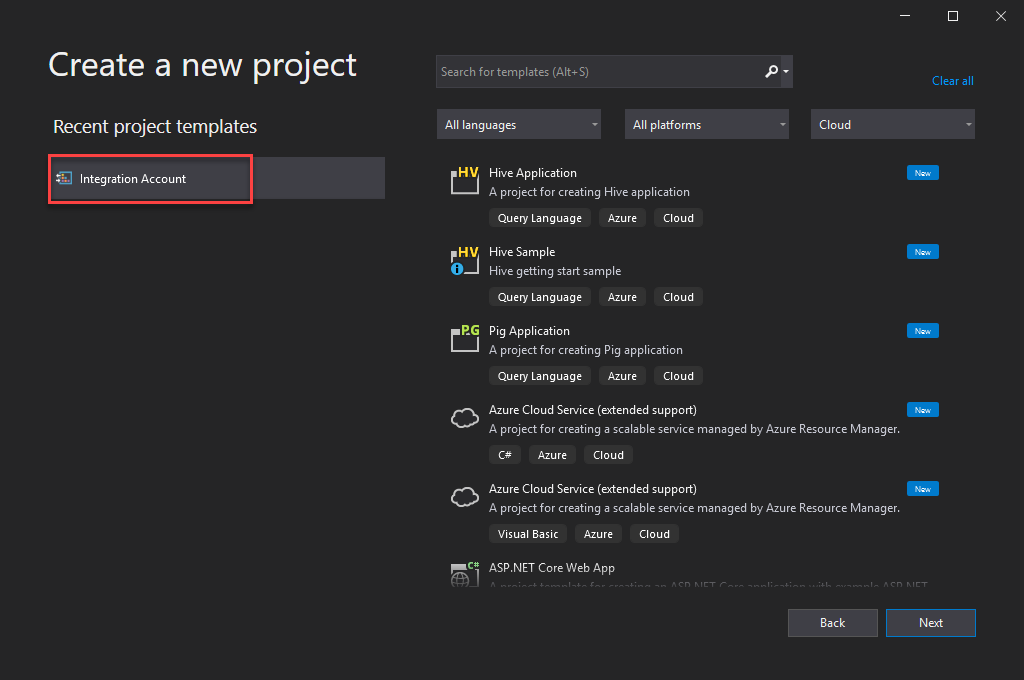
- Create a new Integration Account project.
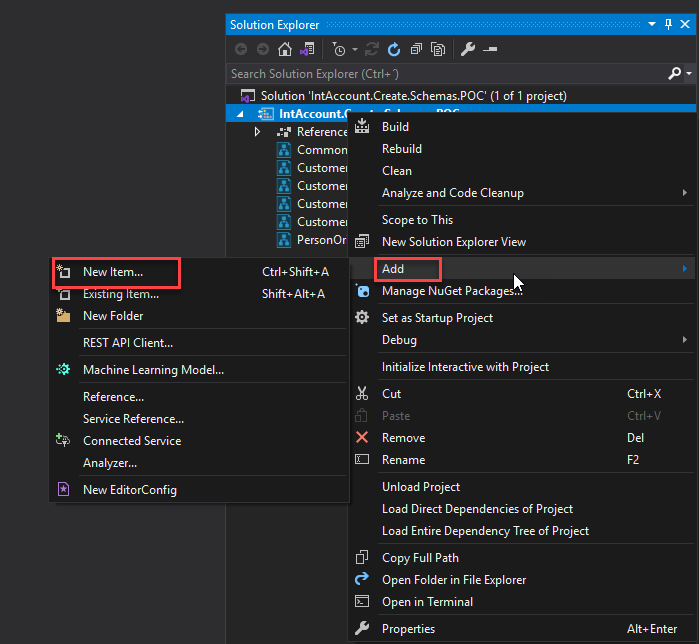
- After you create the project, right-click it and select Add > New Item.
- From the left menu, choose Logic Apps and then choose XML Schema.
- Provide a name for the schema and click Add.
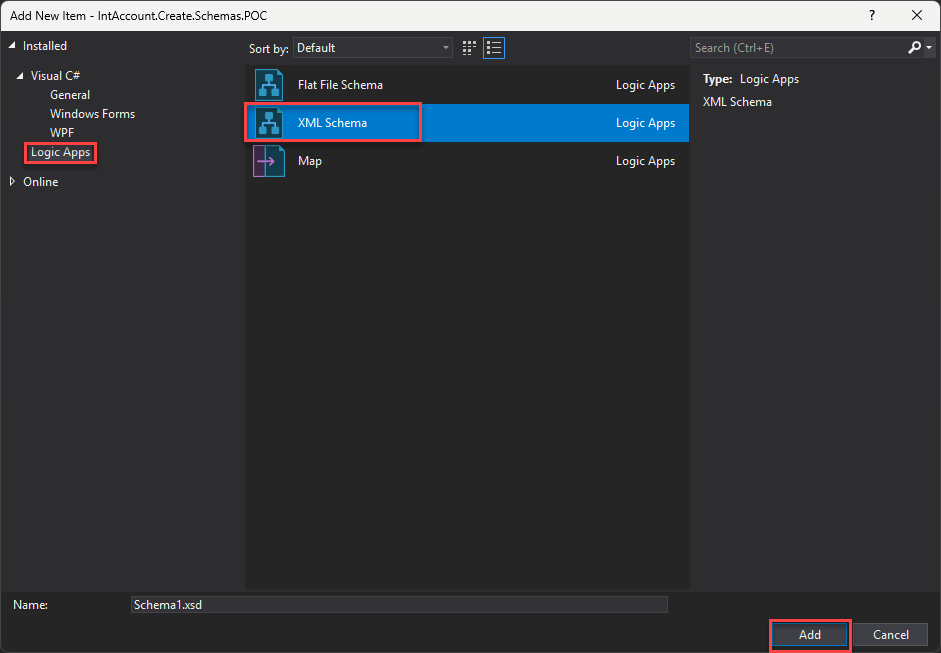
Visual Studio creates a new XSD file and opens the XML Schema Designer.
From here, you can manually define your schema structure or use existing XML samples to speed up the process.
Creating an XML Schema from an XML Instance
A much easier approach is to generate the schema automatically from a sample XML document.
For example, if you have the following XML:
<Order>
    <OrderId>1001</OrderId>
    <CustomerName>John Doe</CustomerName>
    <TotalAmount>125.50</TotalAmount>
</Order>
My recommendation is always to start with a real-life sample document because it gives you a more accurate representation of the actual business data you need to process.
One of the most useful capabilities of Visual Studio is the ability to generate schemas directly from sample XML messages. Unfortunately, the Visual Studio 2019 Integration Account extension doesn’t offer a direct option to generate an XML Schema from a well-formatted instance like BizTalk Server does. However, you can still do it another way.
To do this:
- From Visual Studio, open an XML file by clicking File > Open > File…
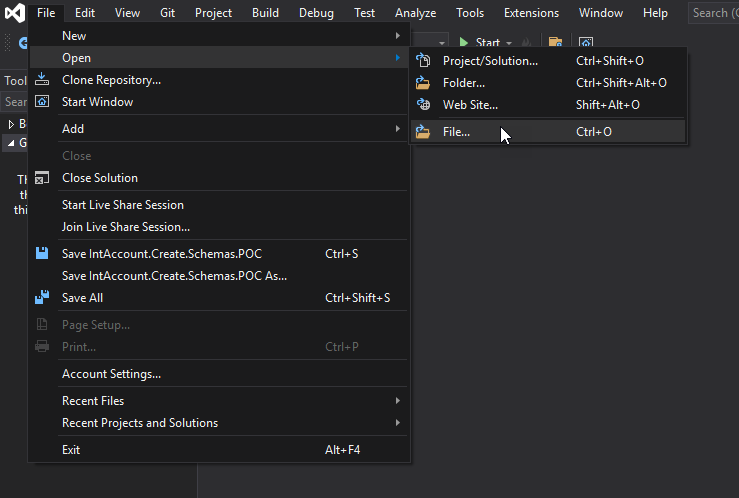
- Once the file is open, you will notice a new XML menu appears to the top bar. Click XML > Create Schema.
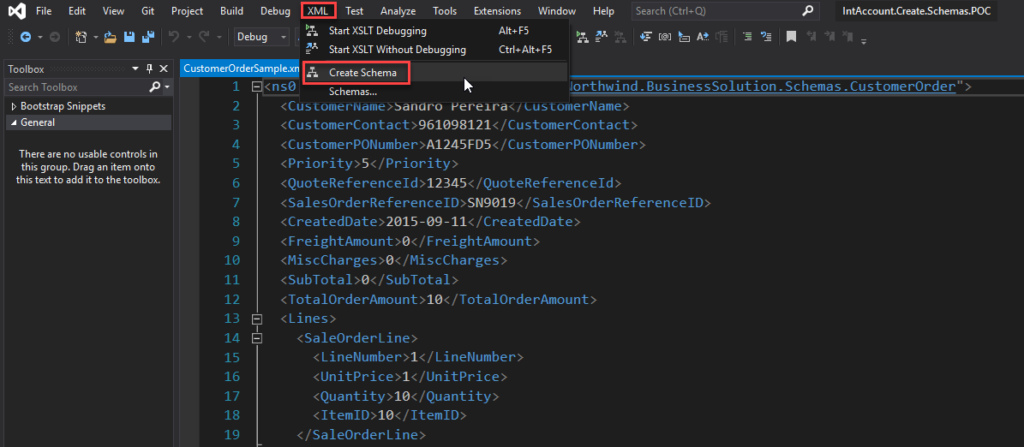
- This generates the schemas from the XML Instance.
- Visual Studio will automatically create the required elements, complex types, and data structures.
- You then need to save them inside your project.
This approach can save considerable time, especially when dealing with large business documents received from customers or partners.
Validating and Refining the Schema
Once you generate the schema, take time to review it.
Automatically generated schemas are a great starting point, but they often need adjustments.
Common refinements include:
- Renaming elements.
- Defining more appropriate data types.
- Adding restrictions.
- Setting minimum and maximum occurrences.
- and so on.
A well-designed schema improves maintainability and reduces validation issues later in your solutions.
Understanding XML Namespaces
Namespaces are one of the most misunderstood aspects of XML development.
Namespaces uniquely identify a document type and prevent conflicts between schemas. This is really important in BizTalk Server, not to much in Logic Apps. However, it is still important in Logic Apps when a Schema imports other schemas.
For example:
<Order xmlns="http://schemas.sandro-pereira.com/order">
The namespace becomes part of the message identity.
A common mistake is forgetting that two schemas may share the same root node name but represent completely different document types because their namespaces are different.
When validating or transforming XML documents in Logic Apps, namespaces are often the first thing I check when something doesn’t work as expected.
Adding the Schema to Logic Apps Standard
Once your schema is ready, you need to make it available to your Logic App workspace.
In Logic Apps Standard, you can store schemas directly in the project and use them in XML-related actions. Microsoft documentation also states that Standard Logic Apps can upload schemas directly into the Logic App resource or use schemas from a linked Integration Account.
A typical project structure looks like:
Artifacts
│
├── Schemas
│   └── Order.xsd
│
├── Maps
│   └── OrderToInvoice.xslt
│
└── Workflows
It is mandatory to place the schemas under the Artifacts/Schemas folder.
For XML schemas, I prefer names such as:
- Order.xsd
- Invoice.xsd
- PurchaseOrderAcknowledge.xsd
- CanonicalInvoice.xsd
rather than overly complex filenames.
When deployed, the schema becomes available to actions such as:
- XML Validation
- Transform XML
- Liquid Transformations (when paired with XML processing)
You can then reference the schema throughout your workflows.
Using the Schema
After adding the schema, you can leverage it in several scenarios:
- XML Validation: Validate whether incoming XML documents comply with the expected structure.
- Parse XML with Schema: Parse XML messages and expose strongly typed elements for downstream actions. Microsoft documents a dedicated “Parse XML with schema” action for Logic Apps Standard workflows.
- Compose XML with Schema: Build XML documents from structured data by applying an XSD schema. Microsoft also provides a “Compose XML with schema” capability for Standard workflows.
- Data Transformations: Use schemas as source and destination definitions for XSLT mappings inside Data Mapper.
Best Practices
From my experience working with BizTalk Server and Azure Integration Services projects, these are the recommendations I follow:
- Always define meaningful namespaces.
- Keep schema names simple and consistent.
- Use real message samples whenever possible.
- Store schemas in source control.
- Reuse canonical schemas when appropriate.
- Validate messages as early as possible in the workflow.
These practices make your solutions easier to maintain and significantly reduce future troubleshooting.
Lessons Learned
One of the biggest mindset shifts when moving from BizTalk Server to Logic Apps Standard is understanding that VS Code is not yet a complete replacement for Visual Studio when it comes to enterprise integration artifacts.
While VS Code handles workflows, connections, local settings, and deployment artifacts well, schema design is still an area where Visual Studio 2019 remains essential.
Could you create an XML Schema manually in VS Code? Yes.
Would I recommend doing so for real-world enterprise integrations? Yes, but we don’t have the same flexibility or troubleshooting support.
The XML Schema Designer available through the Azure Integration Account extension dramatically simplifies the process, reduces human error, and provides productivity features that would otherwise require significant manual effort.
For that reason, whenever I need to create or maintain XML Schemas for Logic Apps Standard solutions, I still reach for Visual Studio 2019 first, and only then bring the finished XSD into my VS Code project.
Conclusion
XML may not be as fashionable as JSON these days, but it remains a critical format across enterprise integration projects. Understanding how to create and maintain XML Schemas is therefore an essential skill for anyone working with Azure Logic Apps.
The good news is that creating an XML Schema does not have to be complicated. You can build one manually, generate it from sample XML documents, or use AI-assisted tools to speed up the process. Once the schema is available inside your Logic App project, it becomes the foundation for XML validation, parsing, document creation, and transformations.
In future articles, I will dive deeper into how to use AI-assisted tools to speed up the process.
I hope you find this helpful! If you liked the content or found it useful and want to help me write more, you can consider buying (or helping to buy) my son a Star Wars LEGO set.



