


Introduction
In Logic Apps Consumption, many developers treat the Compose action as a temporary debugging tool. They use it to print values and remove it before production.
That habit overlooks two of its most valuable uses.
In real-world workflows—where you decode payloads, transform nested JSON, and execute parallel loops—Compose becomes a powerful tool. It is lightweight, immutable, parallel-safe, and fully visible in Run History.
Very few actions in Logic Apps combine all of these characteristics so effectively.
In this Friday Fact, we look at Compose from two perspectives:
- As a safer alternative to Variables in parallel For Each loops
- As a debug snapshot
Why it matters & what it’s for
Long inline expressions behave like a black box. When something fails, you see the error—but not the intermediate values.
Compose changes that.
By placing Compose actions between transformation steps, you expose each stage in the Run History. Azure Logic Apps allows you to inspect inputs and outputs of every action, making debugging significantly easier.
Used strategically, it gives you:
- Transparent debugging: each Compose is a visible checkpoint with its own input and output.
- Parallel-safe state: no shared mutable state, so it does not serialize parallel loops.
- Self-documenting workflows: named Composes describe the data flow at a glance.
- Native auditing hook: Compose outputs plug directly into Tracked Properties for Application Insights.
How it works
Compose evaluates an expression and stores the result. No mutability, no side effects. The value is referenced anywhere later as outputs(‘NameOfTheCompose’). From this minimal behavior, two patterns emerge:
- Debug snapshots between transformation stages.
- Parallel-safe value holder inside concurrent For Each loops.
Implementation
Let’s consider a realistic scenario. An order payload arrives **Base64-encoded**. To process it, the workflow must:
- Extract the Base64 value
- Decode it
- Parse the JSON
- Navigate to the customer node
Instead of collapsing everything into a single expression, the workflow uses four Compose actions:
- ComposeRawBase64
- ComposeDecodedString
- ComposeOrderObject
- ComposeCustomerOnly
Use Case 1 — Compose as a Debug Snapshot
This pattern turns a complex transformation into a step-by-step pipeline.
- Each Compose:
- Evaluates a single transformation
- Exposes input and output in the Run History
- Makes failures immediately visible
If something breaks, you know exactly where:
- Bad Base64?
- Invalid JSON?
- Missing property?
No guessing. No expression spelunking
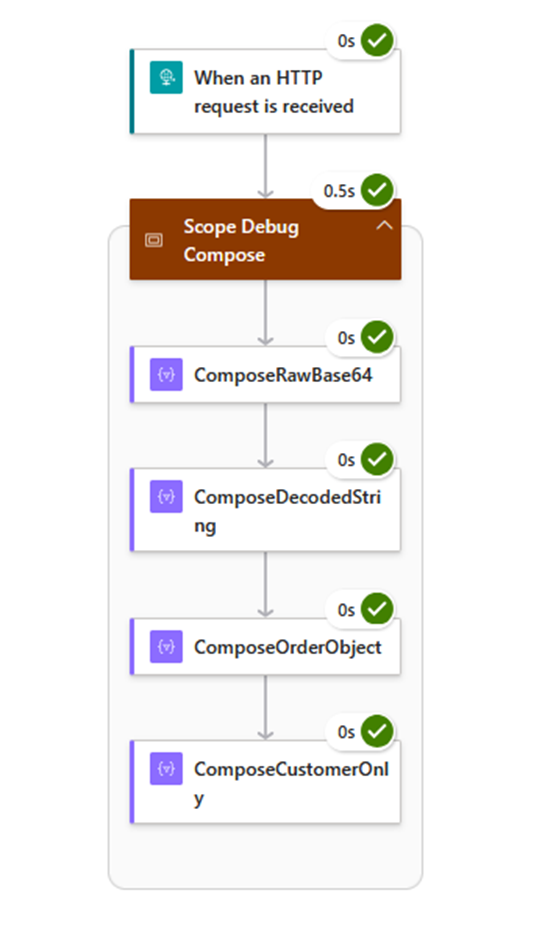
Logic Apps Run History already shows per-action inputs and outputs, which makes this pattern extremely effective for troubleshooting

Use Case 2 — Compose vs Variables in Parallel For Each
This is where Compose really shines.
The problem with Variables inside loops
Variables are mutable and shared across the workflow.
- Inside a parallel For Each:
- Multiple iterations try to update the same variable
- The runtime must protect consistency
- This often leads to:
- Serialization
- Locks
- Reduced performance
In parallel execution scenarios, shared variables can introduce race conditions or overwritten values, making debugging difficult.
The Compose advantage
Compose avoids all of that:
- No mutation
- No locking
- No shared state
Each iteration works independently.
Implementation
In the implementation, there are two For Each loops over the same ten items, both with concurrency enabled and the same Delay inside. The only difference is that one uses Increment Variable, the other uses Compose. The duration in Run History tells the story.
The result:
- The Variable-based loop behaves sequentially
- The Compose-based loop executes in parallel

Same configuration, same input, same delay. The difference comes entirely from how each action interacts with the runtime’s parallelism model.
Best practices
- Name Composes meaningfully: ComposeCustomerPayload tells you everything; Compose_3 tells you nothing.
- Isolate complex expressions: one Compose per transformation step makes failures trivial to locate.
- Prefer Compose over Variables when mutability is not needed: faster, parallel-safe, and cleaner.
- Don’t abuse it: a wall of Composes adds noise. Use them at transformation boundaries and inside parallel loops.
Conclusion
The Compose action is probably the most underestimated tool in Logic Apps Consumption. With a handful of well-named Composes, the same workflow becomes easier to troubleshoot, safer in parallel scenarios, and cleaner to read. Next time you are about to delete a Compose before going to production, pause for a second. It might be the most useful action in your workflow.
Hope you find this helpful! If you enjoyed the content or found it useful and wish to support our efforts to create more, you can contribute towards purchasing a Sauron’s Action Figure for Sandro’s son, yep, not for me!


