


While working with Azure Service Bus, messages sometimes end up in the dead-letter queue. This can happen for several reasons. The most common cause is exceeding the maximum delivery count. This situation can occur for different reasons. For example, the message may not get delivered in time. It can also happen when using peek-lock and the lock expires before you complete the messages at the top of the list.

The problem, and this should be simple to solve, is that while trying to clean these messages from the dead letter queue, we often receive an error that prevents them to being deleted.
📝 One-Minute Brief
When working with Azure Service Bus, dead-letter queues often accumulate messages due to issues like max delivery count or expired locks. Cleaning these messages seems straightforward, but deletion can fail when using incorrect modes like Peek instead of Receive. This post explains how to properly access DLQ messages using Service Bus Explorer.
So how can we overcome this?
It is simple but kind of annoying at the same time. First things first: to reach these messages:
- Access your Azure Service Bus topic or queue.
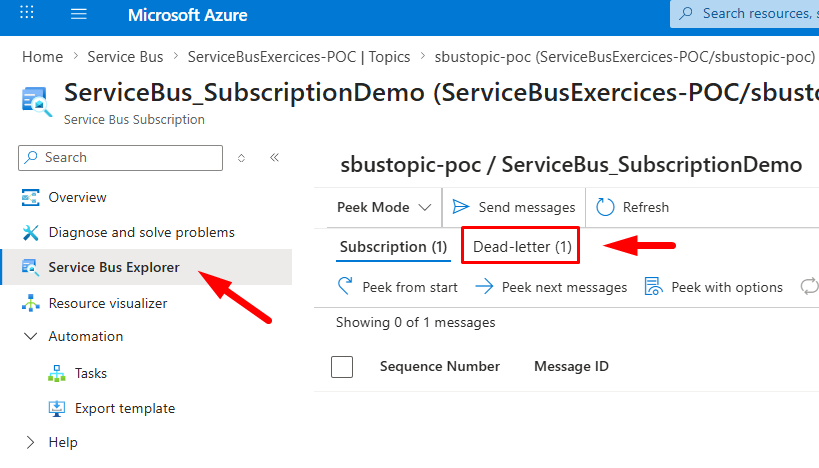
- Then open Service Bus Explorer and click Dead Letter.
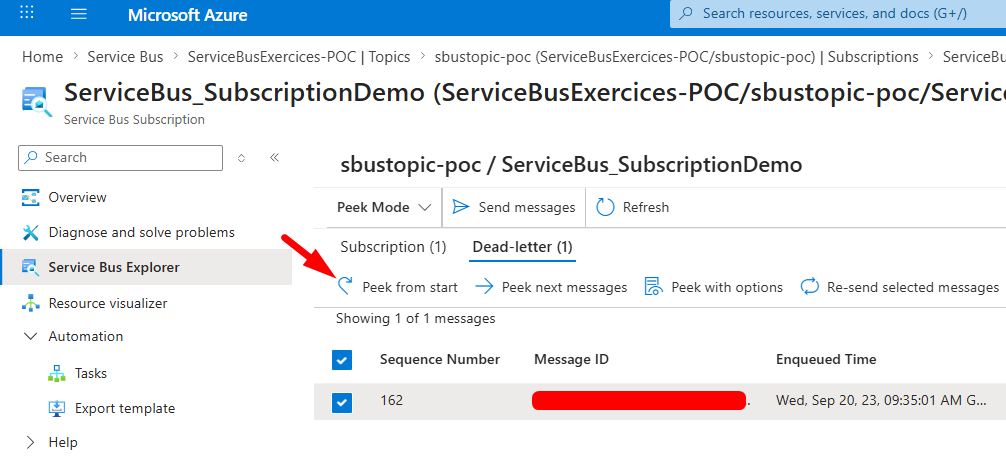
- If you click on Peek from start, you will be able to see the message(s) you have on that same queue:
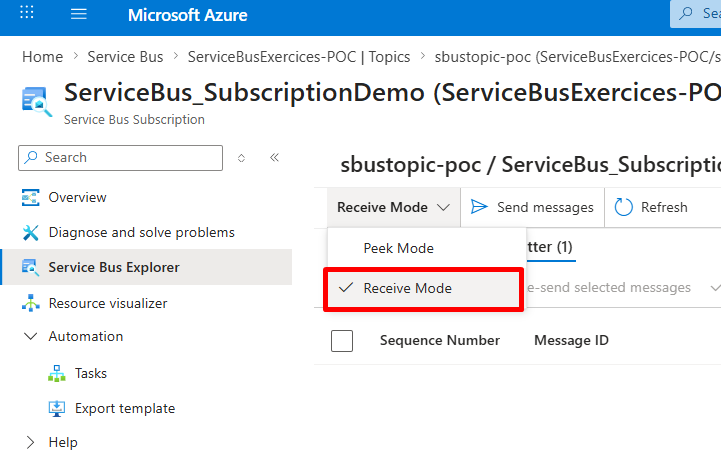
- But if you want to delete them, change the Peek Mode to the Receive Mode.
- After that, you can click on Receive messages and then choose ReceiveAndDelete from the pop-up menu in the Settings panel. Choose the Number of messages to receive, knowing that those messages should be deleted, and click on Receive.
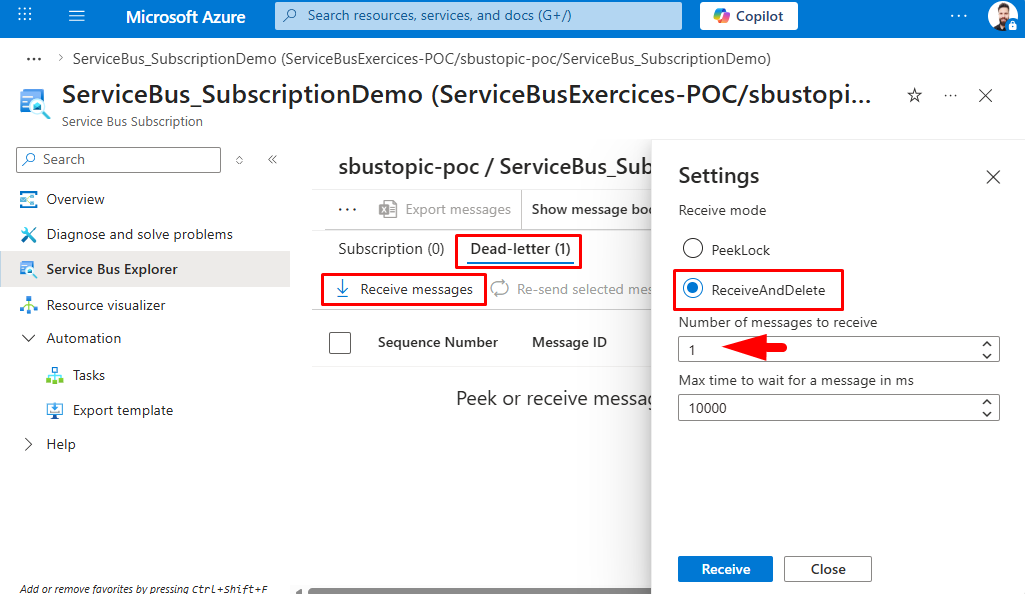
After that, you should be able to easily delete your dead-letter-queued messages.
But sometimes those messages persist, and you won’t be able to delete them properly.
Hope you find this helpful! If you enjoyed the content or found it useful and wish to support our efforts to create more, you can contribute towards purchasing a Sauron’s Action Figure for Sandro’s son, yep, not for me!



