


Welcome again to another Logic Apps Best Practices, Tips, and Tricks post. In my previous articles, I covered several essential best practices for working with Azure Logic Apps. If you missed them, be sure to explore these Logic Apps tips and tricks.
Today, I focus on another critical security best practice you must consider when designing Logic Apps–based business processes: how to correctly configure the Azure Service Bus connector to use a user‑assigned managed identity.
📝 One-Minute Brief
This post shows how to configure the Azure Service Bus connector in Logic Apps Standard by using a user‑assigned managed identity. It explains how this approach eliminates CI/CD RBAC timing issues, improves deployment reliability, and enables fully declarative, secure automation without secrets.
System‑assigned vs User‑assigned managed identity
Before diving into the technical details of this best practice, tip, and trick, let’s start with a clear and practical comparison between system‑assigned and user‑assigned managed identities in Azure.
We will be focusing on how teams actually use them in real‑world solutions.
Both are Managed Identities for Azure resources, meaning:
- Azure manages credentials for you.
- You authenticate to Azure AD–protected resources (Key Vault, Storage, SQL, etc.)
- No secrets, no passwords, no certificate rollover.
The key difference is lifecycle and reusability.
Keep it simple and without entering into much detail:
- System‑assigned managed identity
- They are created automatically when you enable it on a resource (Logic App, Function App, App Service, and so on).
- Tied 1‑to‑1 to that resource:
- Cannot be shared
- Exists only for that resource
- Simpler to configure
- One identity = one resource
- User‑assigned managed identity
- A standalone Azure resource
- More control
- Created independently
- Centralized identity
- Can be attached to multiple resources:
- Shareable
- Explicit assignment required
- A standalone Azure resource
Service Bus Connector Authentication types supported
Azure Service Bus supports three main authentication models:
- Connection String, based on Shared Access Signature (SAS).
- Legacy but still supported.
- Active Directory OAuth:
- Uses Microsoft Entra ID (Azure AD)
- Authenticates via:
- Service Principal (App Registration).
- Client ID / Secret or Certificate.
- Token-based (OAuth 2.0).
- and Managed Identity, which is a specialized form of Azure AD OAuth:
- No credentials to manage
- Natively using System-assigned managed identity
- Uses Azure RBAC:
- Azure Service Bus Data Sender
- Azure Service Bus Data Receiver
- Azure Service Bus Data Owner
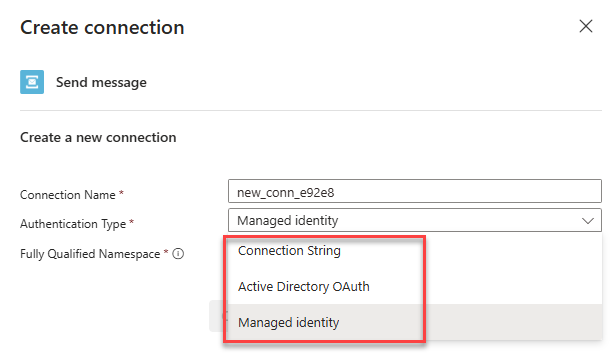
Nowadays, I must say that the most widely used will be the System-assigned managed identity, because it is the default that is supported. Now here is the catch:
- When using Logic App Standard + System‑assigned Managed Identity with Azure Service Bus, the problem is not security — it’s orchestration and timing in CI/CD.
The real deployment problem with system‑assigned managed identity
The core issue is that you cannot pre‑configure RBAC because the identity does not exist until AFTER the resource is created and MI is enabled. And that creates a chicken‑and‑egg problem in pipelines.
Step-by-step (what breaks automation):
- ✅ CI/CD creates Logic Apps Standard.
- ✅ Managed identity is enabled.
- ✅ Azure creates a service principal automatically.
- ❌ principalId is only known at runtime.
- ❌ RBAC to Service Bus cannot be defined upfront.
- ✅ You now must:
- Query Azure to fetch the identity.
- Dynamically assign roles.
- Hope nothing changes on redeploy.
This means RBAC is no longer declarative.
Each redeploy can:
- Replace the Logic Apps.
- Replace the identity.
- Invalidate existing RBAC.
Pipelines become:
- Hard to reason about.
- Fragile.
- Order‑dependent.
What if I told you that the Service Bus connector already supports user‑assigned managed identities? Although the platform supports this capability, Microsoft has not yet documented it, and the Azure Portal UI still does not expose this option.
Setting up Service Bus Connector with a user‑assigned managed identity
Here is how you set up the Service Bus connector to support a user‑assigned managed identity, which will be the authentication we want to use by default.
App Settings
First, make sure that the following App Settings are created inside the Logic App Standard Environment variables:
- SB_fullyQualifiedNamespace
- With the following value: “<service-bus-name>.servicebus.windows.net”
- SB_ManagedServiceIdentity
- With the following value “/subscriptions/<subscription-id>/resourceGroups/<rg-name>/providers/Microsoft.ManagedIdentity/userAssignedIdentities/<your-identity-name>”
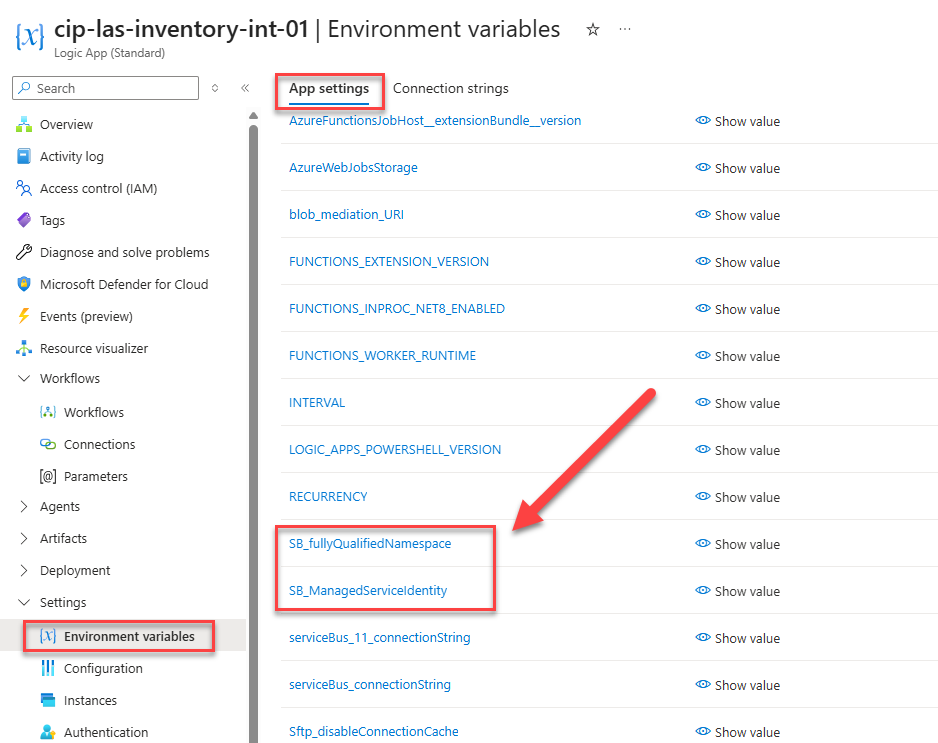
Notes:
- I added these as default app settings for this POC, but ideally, they should reference a Key Vault with those values!
- Those App Settings names can be different and adjusted to your naming conventions.
Connections
The second task you need to complete is to add a custom Service Bus connection to your connections file or the connection tab in the Azure Portal. Make sure you add the following connection:
"serviceBusMI": {
            "displayName": "serviceBusManagedServiceIdentity",
            "parameterSetName": "ManagedServiceIdentity",
            "parameterValues": {
                "authProvider": {
                    "Identity": "@appsetting('SB_ManagedServiceIdentity')",
                    "Type": "ManagedServiceIdentity"
                },
                "fullyQualifiedNamespace": "@appsetting('SB_fullyQualifiedNamespace')"
            },
            "serviceProvider": {
                "id": "/serviceProviders/serviceBus"
            }
        }
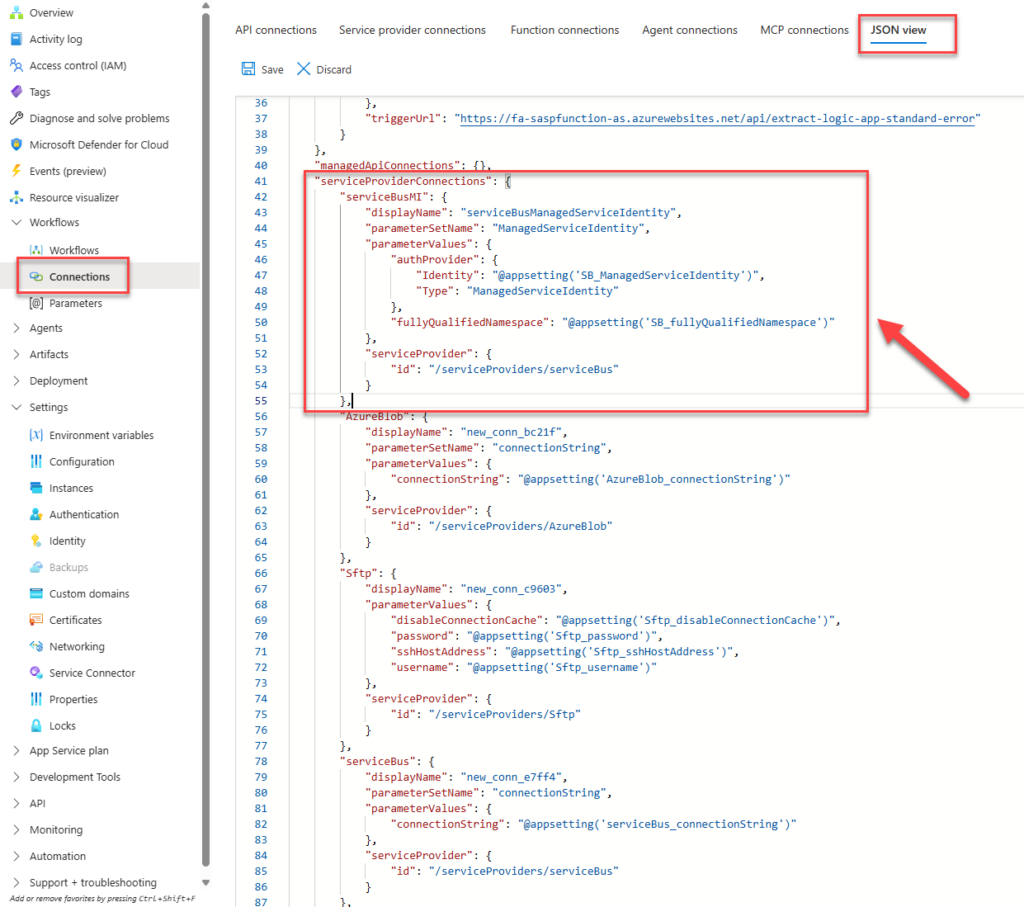
Note:
- Notice that the Service Bus connection references the Managed Identity and the fully qualified namespace that we previously defined in the App Settings.
- The Service Bus connector lives inside the serviceProviderConnections section.
Logic App Workflow
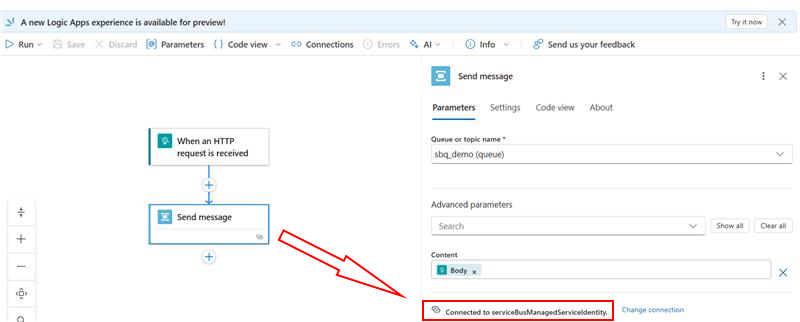
Finally, let’s work on our workflow. Inside the Logic App workflow, ensure that the Service Bus connector references the serviceBusManagedServiceIdentity connection.
I hope you find this helpful! If you liked the content or found it useful and want to help me write more, you can consider buying (or helping to buy) my son a Star Wars Lego set.



