


Scheduling workflows is one of the most common scenarios in Azure Logic Apps, and the Recurrence trigger is usually the first choice when you need a workflow to run hourly, daily, weekly, or on a custom interval.
At first glance, configuring a recurrence schedule looks simple. The Azure Portal even helps you by exposing a Start time field in the UI. However, there’s a subtle, often-overlooked problem lurking behind this simplicity—time zone handling.
And this is where many developers get caught.
📝 One-Minute Brief
Scheduling Azure Logic Apps with the Recurrence trigger seems simple until time zones get involved. This article explains the common start time trap caused by UTC formatting, why workflows run at unexpected hours, and the exact rule you must follow to correctly configure start time and time zone.
The typical configuration (and the trap)
In many scenarios, we have the need to configure the workflow to be executed X number of times, starting at a specific hour, for example, every 12 hours starting at 9AM. When we have these scenarios, when configuring the Recurrence trigger in the Azure Portal, developers usually set the Start time using a value like this:
- YYYY-MM-DDThh:mm:ssZ
This is because the UI will induce them to do that:
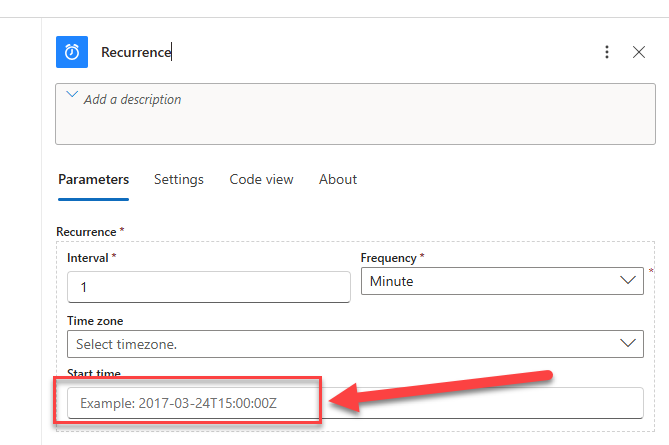
For example, in our case:
- 2026-05-05T09:00:00Z
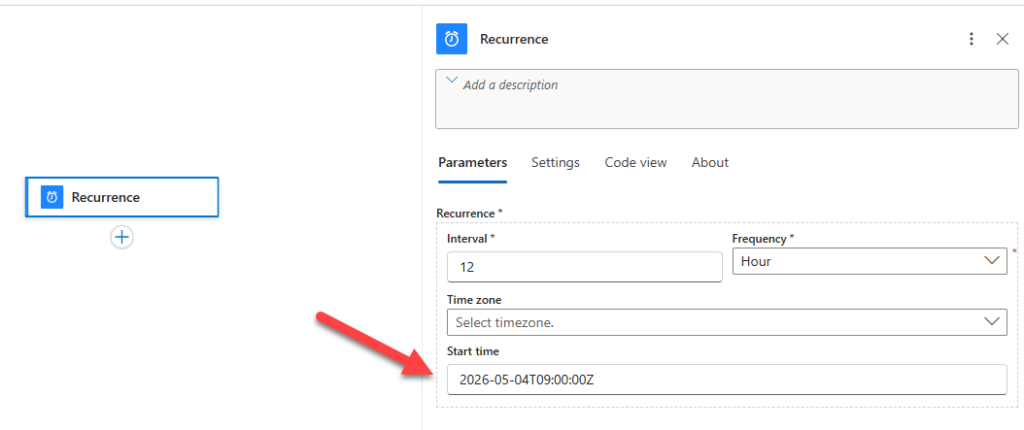
Now, imagine your client is in France and wants to run it in the French time zone. For that, you will set the Time zone property to be (UTC+01:00) Brussels, Copenhagen, Madrid, Paris.
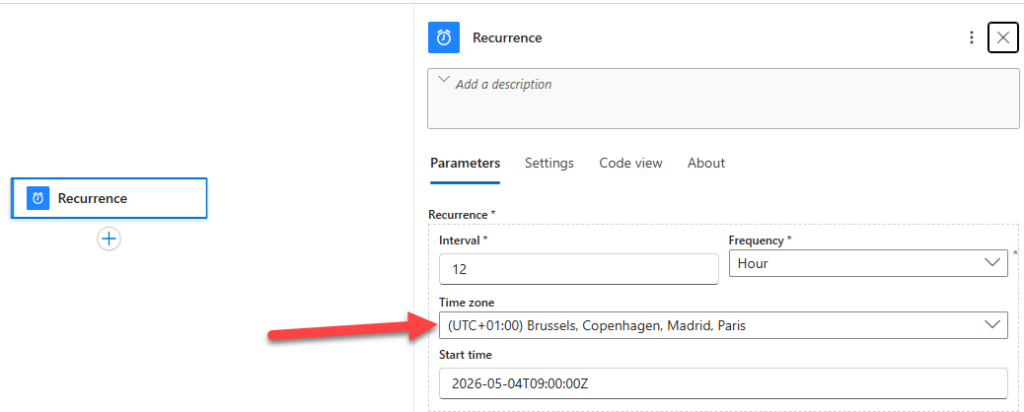
Now, when you save it, your workflow will not start at the local time you expect.
Why this happens
If you are running Logic Apps from Portugal, the UK, Central Europe, or any other time zone outside UTC, your workflow will not start at the local time you expect.
2026-05-05T09:00:00Z is with timezone information made explicit > Z = Zulu time = UTC.
The Z suffix at the end of the timestamp explicitly tells Logic Apps:
- This start time is defined in UTC.
Not your local time zone. Even if you specify the Time zone property to be (UTC+01:00) Brussels, Copenhagen, Madrid, Paris this configuration will overlap the Time zone settings, and the Logic App workflow will be triggered at:
- 09:00 UTC
- Not 09:00 French time (or local time)
Don’t get me wrong, and this is the worst part:
- The workflow runs successfully.
- Just not when you expect it to.
This makes the problem harder to detect.
The Azure Portal UI makes this easy to miss
Again, the Logic Apps designer UI does not clearly warn you about this behavior.
What developers typically see is:
- A date picker.
- A time selector.
- No explicit time zone indicator unless you expand advanced options.
As a result, many assume the start time is:
- Their browser’s local time.
- The resource’s region time.
- Or the recurrence will always respect the Time zone property.
Neither assumption is correct by default.
The correct way: the rule to configure the start time property
To avoid these kinds of problems, and in order to set up correctly the Start time and the Time zone properties in the Recurrence trigger, you must follow the following rule:
- Use the YYYY-MM-DDThh:mm:ssZ format (with Z suffix) if you don’t select a time zone.
- Use the YYYY-MM-DDThh:mm:ss format (without Z suffix) if you select a time zone.
In our sample, you need to set up the following configurations:

Key points:
- The
Zsuffix is removed. - The time zone is explicitly defined.
- Logic Apps now automatically respects daylight saving and will be executed in local time, in our case, French time.
Why does this matter even more with DST
Daylight Saving Time (DST) is where things get really messy.
If you hard-code UTC times with Z:
- Your workflow will not adapt when DST starts or ends
- You’ll suddenly see workflows running at the “wrong” hour
The same may happen if you set it up statically:
- 2017-03-24T16:58:00+01:00
When you define a time zone, Logic Apps:
- Adjusts automatically.
- Keeps executions aligned with your local business time.
This is critical for:
- Business processes.
- Integrations with on‑prem systems.
- SLA‑driven workflows.
- Scheduled file drops or API calls.
Final thoughts
The Recurrence trigger is powerful and reliable—but time zones are unforgiving.
The Azure Portal UI makes it easy to configure a start time, but it also makes it easy to fall into the UTC trap. By explicitly defining the time zone, you avoid subtle bugs, unexpected execution times, and painful production surprises—especially during daylight saving changes.
A small configuration detail can make a big difference.
Hope you find this helpful! If you liked the content or found it useful and would like to support me in writing more, consider buying (or helping to buy) a Star Wars Lego set for my son.




What if i want my single workflow to run for different timezone? With different variables as well!