


One of the most common questions I still hear from developers working with BizTalk Server orchestrations is:
“What is the best way to copy multiple variables from one orchestration to another?”
At first glance, this looks like a trivial task because it is an easy task:
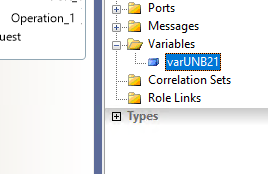
- You access the variable you want to copy and right-click and select Copy.

- And then you go to the other orchestration, right-click the Variables folder, and select Paste.

- And the Variable will be present inside your orchestration
However, as the number of variables grows, the solution can quickly become ugly, repetitive, and error-prone.
In this post, I’ll walk you through simple, clean approaches to copying several variables between orchestrations, helping you keep your solutions maintainable and readable.
📝 One-Minute Brief
Bulk-copying variables between BizTalk orchestrations can save time and prevent repetitive errors. This post shows a simple XML editor trick to copy multiple variables at once, keeping orchestrations clean, scalable, and easier to maintain.
The problem
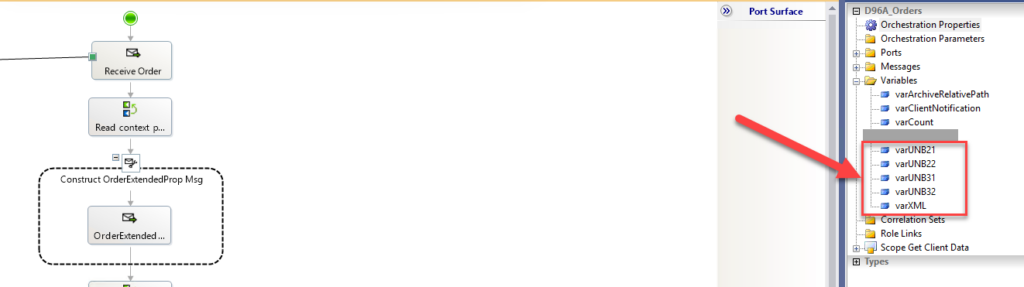
Imagine you have a parent orchestration calling a child orchestration. Both orchestrations share a set of variables; in other cases:
- varUNB21
- varUNB22
- varUNB31
- varUNB32
- varXML
We have to copy and paste each of these variables individually. This works… but:
- It does not scale well.
- It is time-consuming.
Let’s look at a better alternative.
Alternative option: Bulk-copy all the variables
And if I tell you, with a small trick, you can bulk-copy all the variables you need! Yes, you heard correctly!
To accomplish that, you need to:
- Right-click the Orchestration that contains the Variables you want to copy, then select Open With…

- And then, from the Open With window, select the XML (Text) Editor option and then click OK.

- In the Orchestration file that was opened by the XML (Text) Editor, and inside the segment <om:Element Type=”Module”>.
- Minimize all the <om:Element Type=”PortType”> elements.
- And inside the <om:Element Type=”ServiceDeclaration”> element, copy all the variable declarations you want.

- Now open the other orchestration and copy the same variable declarations to the same place in it.
Now, if you open the orchestration with the normal Orchestration Designer, you will have all the variables available!
Check the YouTube video I made to exemplify this tip and trick!
Hope you find this helpful! If you liked the content or found it useful and would like to support me in writing more, consider buying (or helping to buy) a Star Wars Lego set for my son.



