


Imagine this scenario: you design a Logic App Consumption to process critical alerts or specific emails. Everything works flawlessly, but when you check the Run History, it’s filled with thousands of Succeeded runs that… did absolutely nothing. Unfortunately, this is a common reality for many users.
The traditional approach is to add a Condition action at the beginning of the workflow to check whether the incoming data is relevant (e.g., “Is this email from my boss?” or “Is this alert critical?”). But here’s the catch: you’re paying for every one of those executions. Even if the Logic App exists immediately, the trigger fired, an instance was created, and the meter started running.
In high-volume scenarios, this unnecessary “noise” can significantly inflate your Azure bill.
📝 One-Minute Brief
This post explains how to reduce unnecessary Logic App Consumption runs and costs by using Trigger Conditions instead of Conditions inside the workflow. By filtering requests before a run starts, you avoid noise, save money, and keep Run History clean.
A Smarter Approach
There’s a smarter and more efficient way to handle this: Trigger Conditions.
Think of Trigger Conditions as a security worker at the entrance of your workflow. Instead of letting everyone walk in and checking their ID inside (which costs money), the bouncer checks the ID before they step inside.
By adding a simple expression in the trigger settings, the Logic App platform evaluates the incoming data before creating a run instance.
- Condition met? The Logic App fires, and you pay for the execution.
- Condition failed? No instance is created. No run history, no clutter, and most importantly: zero cost (or almost zero cost).
Sounds good, right? Let’s put it to the test…
How to Implement It (Example)
For this example, we will be using a Logic App Consumption:
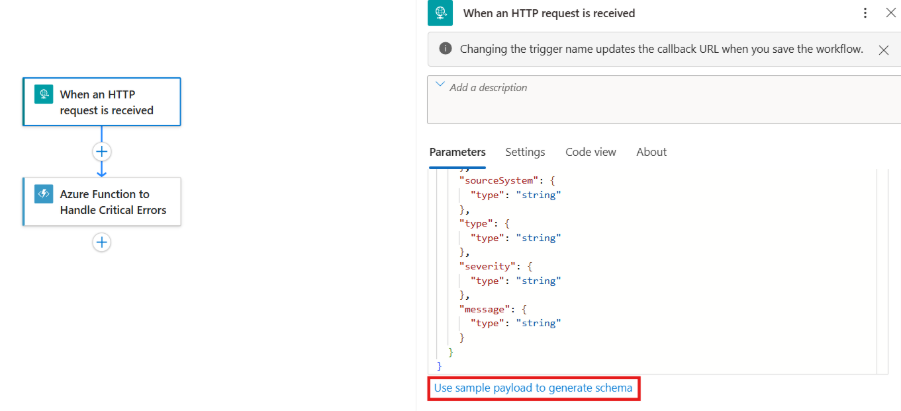
- Open the Logic App designer and add the When an HTTP request is received trigger.
- Use the following sample payload to generate the schema (recommended, but not required):
{
 "alertId": "LA-A-92837",
 "timestamp": "2025-11-24T18:15:00Z",
 "sourceSystem": "Azure Monitoring",
 "type": "High",
 "severity": "Critical",
 "message": "Production SQL DB connection failure."
}
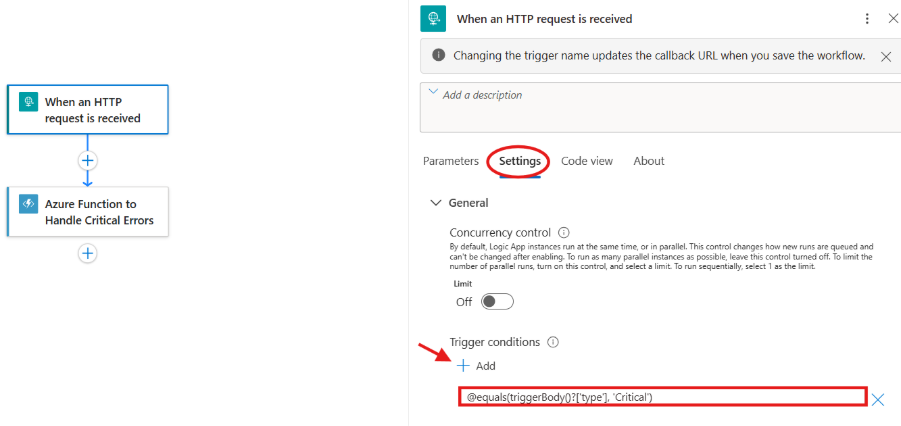
- Navigate to Settings > General > Trigger Conditions > + Add
- Add the following expression:
@equals(triggerBody()?['type'], 'Critical')
Testing
In order to test it, send at least two requests (Postman works perfectly).
Should trigger the Logic App:
{
"alertId": "LA-A-92837",
"timestamp": "2025-11-24T18:15:00Z",
"sourceSystem": "Azure Monitoring",
"type": "Critical",
"severity": "High",
"message": "Production SQL DB connection failure."
}
Should NOT trigger the Logic App:
{
"alertId": "LA-A-92838",
"timestamp": "2025-11-24T18:16:00Z",
"sourceSystem": "Azure Monitoring",
"type": "Warning",
"severity": "Medium",
"message": "High CPU utilization, but within the limits."
}
How do you confirm that it’s working? There are two ways. You can either:
- Open Monitoring > Metrics.
- Filter by Triggers started and Runs completed.
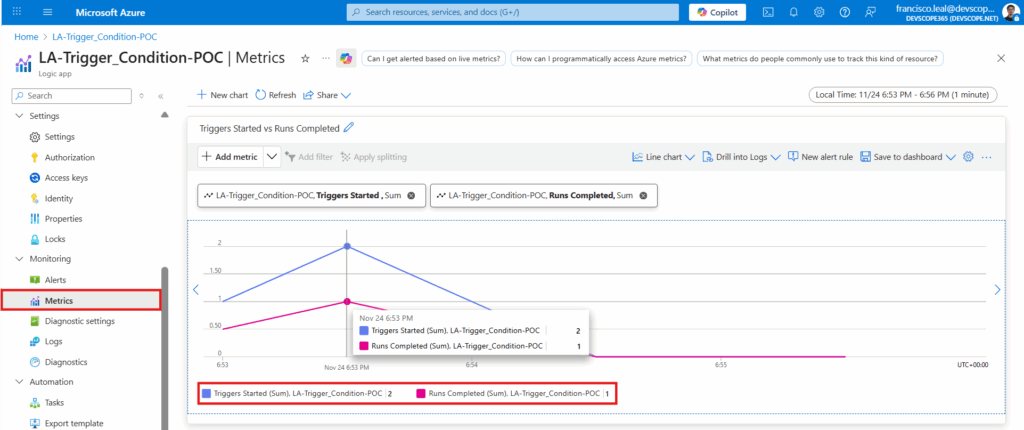
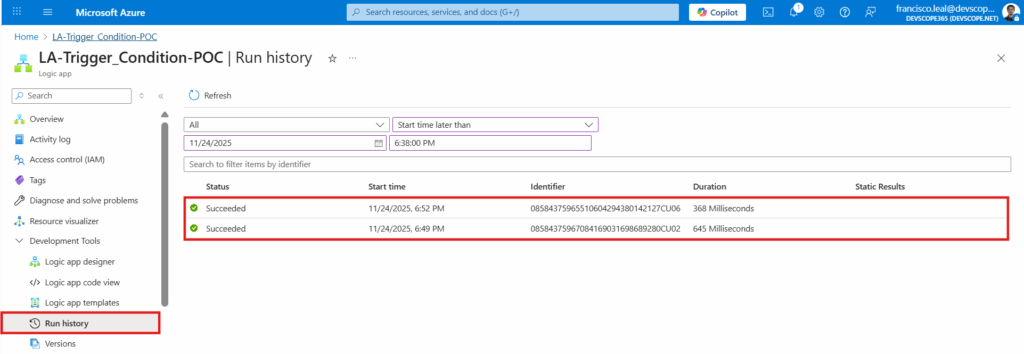
Or just go to Run History, and you’ll notice that only the runs that met the condition appear. All other requests were ignored before the Logic App was instantiated, so they never show up here. You’ll notice more triggers fired than runs completed – exactly what should happen.
Key Takeaways
Trigger Conditions are one of those small features that deliver huge value: they reduce costs, clean up your Run History, and make your Logic Apps more efficient and professional. If you’re working with high-volume triggers, this optimization isn’t just useful – it’s essential. A tiny configuration change that can save hundreds (or thousands) per year while keeping your workflows clean.
To lazy to read? We’ve got you covered! Check out our video version of this content!
Hope you find this helpful! If you liked the content or found it useful and would like to support me in writing more, consider buying (or helping to buy) a Star Wars Lego set for my son.


