


It’s a classic scenario: you update your policy in Azure API Management, hit save, and test your API. Nothing changed. You test again, but the old behavior persists. You are 100% sure you edited the XML correctly, yet the gateway ignores you. If you’ve ever felt like there is a ghost in the machine, you aren’t alone—this is one of the most common hurdles in API Management.
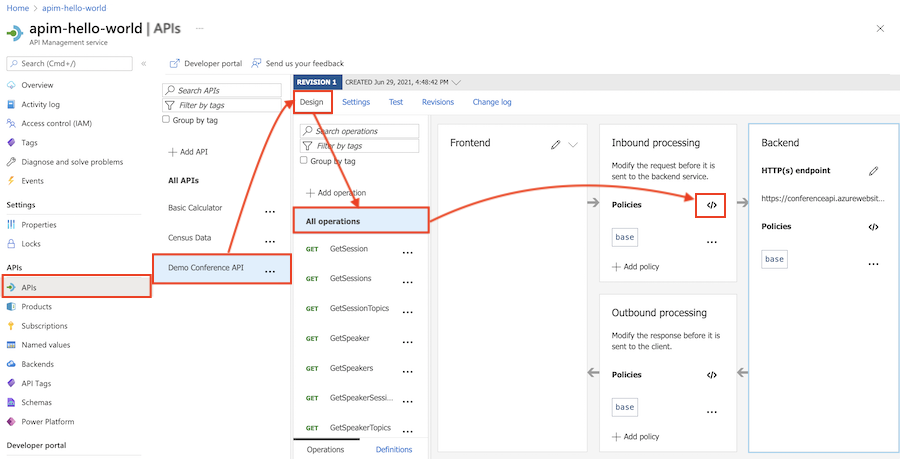
So why isn’t it applying?
📝 One-Minute Brief
When Azure APIM policy updates don’t take effect, the issue is usually caused by the API Management built-in cache, incorrect policy scope (Global vs. Operation level), or a “last-writer-wins” conflict in the Azure Portal. To fix, ensure you aren’t overriding the policy at a lower level, check for cache-lookup policies, and try a hard refresh or a direct call via an external tool like Postman to bypass browser state.
Understanding the Hierarchy: Why Your Change Might Be “Losing”
When you find your Azure APIM policy not updating, the culprit is almost always the policy hierarchy. APIM evaluates policies at four distinct levels:
- Global (All APIs)
- Product
- API
- Operation
If you edit a policy at the API level, but a specific Operation or Product defines a conflicting rule, your change might never execute. In the world of APIM, the most specific scope usually wins, or the inheritance chain gets broken entirely.
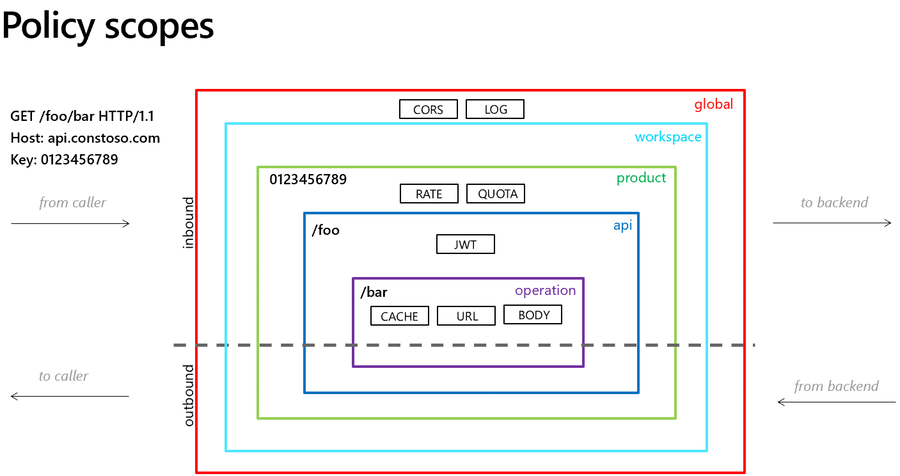
For example:
- You add
<set-header>at the API level - But the Product-level policy overrides it
- Or the Operation-level policy contains its own logic
APIM evaluates policies in an order and scope hierarchy.
If something lower in the hierarchy overrides your change, it wins.
The Most Common Mistake
Editing the API-level policy while the logic actually lives at:
- Product level
- Global level
- Or inside a specific operation
Result: your change is correct — just not being used.
The Workaround
- Check all policy scopes
- Use the “Effective Policy” view
- Confirm where the logic is actually defined
- Look for
<base />— if missing, inheritance is broken
If <base /> isn’t included, parent policies won’t apply.
That one tag can change everything.
To lazy to read? We’ve got you covered! Check out our video version of this content!
Hope you find this helpful! If you enjoyed the content or found it useful and wish to support our efforts to create more, you can contribute towards purchasing a Sauron’s Action Figure for Sandro’s son, yep, not for me!



