Modernizing your BizTalk Server infrastructure doesn’t always require re-architecting your integrations. Sometimes, small and targeted improvements can significantly increase resilience, simplify operations, and reduce long-term risk. One of those improvements is moving your BizTalk database backups to Azure Blob Storage.
In this article, I’ll walk you through how to configure the native BizTalk Backup Jobs to store backups directly in Azure, using SQL Server’s BACKUP TO URL feature. This approach allows you to keep your BizTalk environment unchanged while benefiting from the durability, scalability, and geo-redundancy of cloud storage—without introducing new components or custom code.
📝 One-Minute Brief
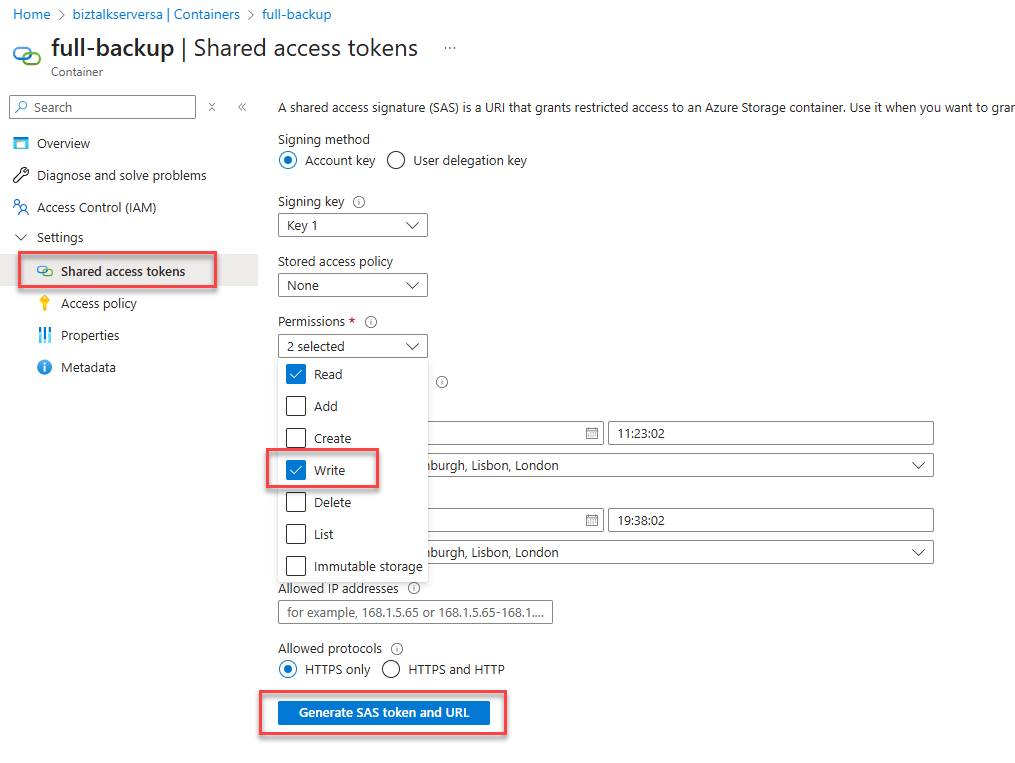
This article explains how to configure BizTalk Server Backup Jobs to store database backups directly in Azure Blob Storage. You’ll learn how to generate a SAS token, create the required SQL credential, test the configuration using BACKUP TO URL, update the BizTalk Backup Job, and avoid the most common pitfalls. This approach improves resiliency, simplifies disaster recovery, and reduces on-premises storage dependency.
Why move BizTalk backups to Azure?
By default, BizTalk Server stores its backups on local or network-attached storage. While this works, it introduces several challenges:
Limited scalability.
Higher risk of data loss.
Manual offsite replication.
Higher infrastructure overhead.
Azure Blob Storage provides a modern alternative:
✔ Geo-redundant storage.
✔ Built-in durability.
✔ Pay-as-you-go pricing.
✔ Offsite protection by default.
✔ Easy integration with SQL Server.
By redirecting the BizTalk backup job to Azure Blob Storage, you significantly improve your disaster recovery posture with minimal changes to your architecture.
Architecture overview
Nothing changes in how BizTalk triggers its backups. The difference is in where SQL Server writes the backup files.
Before: BizTalk Backup Job → SQL Server → Local/NAS storage.
Before touching BizTalk, validate that SQL can write to Azure.
BACKUP DATABASE BizTalkMgmtDb
TO URL = 'https://<storageaccount>.blob.core.windows.net/<container>/BizTalkMgmtDb_test.bak'
WITH INIT, COMPRESSION, STATS = 10;
If this fails, BizTalk will fail as well.
Step 5 – Update the BizTalk Backup Job
BizTalk Server uses a SQL Agent job named Backup BizTalk Server to perform full backups and transaction log backups of the BizTalk Server databases. We must modify its steps to replace local disk paths with Azure URLs. For example:
Repeat the same logic for the DTA Purge and Archive (BizTalkDTADb) job.
Step 6 – Validate the end-to-end flow
Run the Backup BizTalk Server job manually.
Open Azure Blob Storage.
Confirm .bak files are appearing.
Redirecting BizTalk Server backups to Azure Blob Storage is one of the easiest ways to modernize your platform without touching your integrations.
You get:
✔ Better resilience
✔ Offsite protection
✔ Reduced infrastructure
✔ Cloud-native durability
All while keeping BizTalk exactly as it is.
Hope you find this helpful! If you liked the content or found it useful and would like to support me in writing more, consider buying (or helping to buy) a Star Wars Lego set for my son.
Author: Sandro Pereira
Sandro Pereira lives in Portugal and works as a consultant at DevScope. In the past years, he has been working on implementing Integration scenarios both on-premises and cloud for various clients, each with different scenarios from a technical point of view, size, and criticality, using Microsoft Azure, Microsoft BizTalk Server and different technologies like AS2, EDI, RosettaNet, SAP, TIBCO etc.
He is a regular blogger, international speaker, and technical reviewer of several BizTalk books all focused on Integration. He is also the author of the book “BizTalk Mapping Patterns & Best Practices”. He has been awarded MVP since 2011 for his contributions to the integration community.
View all posts by Sandro Pereira