


Following my last blog post on BizTalk Server Orchestration Parameters, I want to explain the same paradigm in Logic Apps. As in BizTalk Server, Logic Apps let you call a workflow synchronously, similar to the Call Orchestration model. In this case, the parent workflow invokes a child and waits for it to finish, much like calling a method in code.
Logic Apps also support asynchronous calls using a publish‑and‑start model. This approach mirrors the BizTalk Start Orchestration pattern. Here, the parent workflow starts the child and continues without waiting. The child instance then runs independently.
Unlike BizTalk Server, where we can pass different types of parameters (messages, variables, …) as In, Out, or Ref. When one Logic App calls another, the “parameters” you pass are simply the child’s trigger inputs. In practice, there are two clean ways to structure this:
- Call a workflow inside the same Logic App Standard app with the built-in Workflow action.
- Of course, you can also use the Workflow action (managed connector) to call a Logic App Consumption.
- Or call any workflow (Standard or Consumption) over HTTP. Both are just contracts between the caller and the child’s trigger.
If you’re using Logic Apps Standard or Consumption, the smoothest option is the Workflow action. In order to use the Workflow action/Logic App Connector, the child must start with the When an HTTP request is received trigger.
📝 One-Minute Brief
This article explains how to call child Logic Apps and correctly use inbound and outbound parameters. It clarifies what data types you can pass, how values flow between workflows, and common design mistakes that affect scalability, coupling, and governance.
Inbound “parameters”
As mentioned before, when one Logic App calls another, the “parameters” you pass are simply the child’s trigger inputs, being them:
- The body payload.
- And/or the HTTP Headers.
- Query and/or URI parameters
In the child, on the start shape: When an HTTP request is received trigger, you can define a body schema that represents your parameters—strings, numbers, booleans, arrays, or objects. In the picture below, we will see input1 and input2:
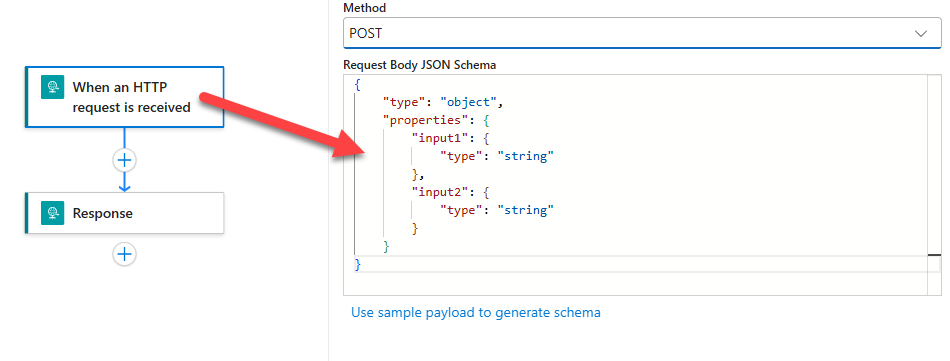
That schema is your contract. In the parent, drop the Workflow action, pick the child by name, and map values into the child’s JSON body.

Note that the JSON schema in the child workflow is not mandatory! If you specify that you are kind of closing the contract between them. Notice that in the picture above, the primary workflow recognizes that the child workflow expects two inputs: input1 and input2. If you don’t specify:
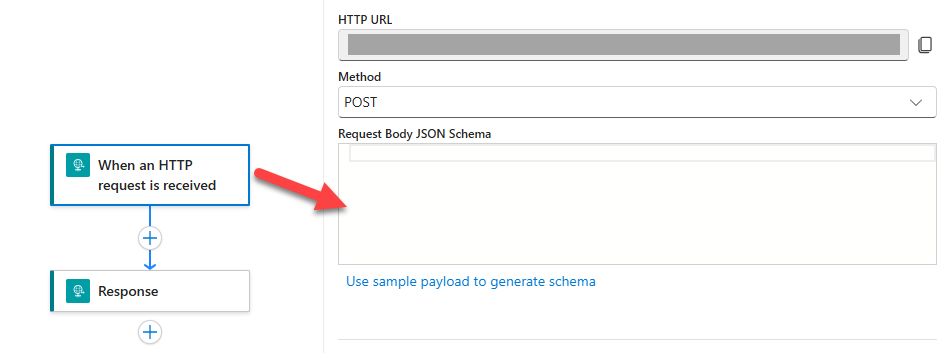
It will become an open contract:

Both approaches have advantages and disadvantages.
Now, HTTP Headers are also a way to send inbound “parameters” to a child workflow, and they should be used, especially when we send the body of a message to be processed by the child workflow. And all the control parameters as headers. It is a good best practice to use the body for documents (messages) and HTTP Headers for control variable values (for custom flags, correlation IDs, etc.).

Now, if you want to use query parameters or URI Parameters, the Azure Logic App connector – Choose a Logic Apps workflow action does not support them! Instead, you need to use the classic HTTP connector to use that strategy for inbound parameters.
Logic Apps allows you to use a path (URI) or query parameters. For the URI parameters, we need to include them in the trigger’s relative path:

Query parameters you can add to the end of the URL; you cannot specify them in the child workflow, but you can retrieve them.

In this case, the child exposes an endpoint via the Request trigger, and the parent calls it via an HTTP action. Your parameters live in the body (for structured JSON), in the path (for identifiers), or in the query/headers (for optional switches, versioning, and correlation).
Outbound “parameters”
For the Outbound parameters are almost the same, but in this case, we can only use:
- The body payload.
- And/or the HTTP Headers.
The child returns data through a Response action; whatever JSON you send back becomes the parent’s action outputs. This gives you a tidy, synchronous “call and wait” model with typed inputs and outputs.
Of course, the outbound “parameters” can only be used in the synchronous calls. Async calls do not have outbound “parameters”.
Best practices
Although URI and query parameters work well for REST APIs, you should avoid them in parent‑child Logic Apps workflows. Instead, use the request body for documents or messages, and rely on HTTP headers for control values such as custom flags or correlation IDs.
For security reasons, always prefer the Azure Logic Apps connector by using the Choose a Logic Apps workflow action. Avoid the HTTP connector whenever possible, and treat it as a last resort. When the Logic Apps connector does not meet your requirements, expose the workflow through API Management and call it using the APIM connector instead of the HTTP connector.
In most designs, the child workflow exposes an endpoint through a Request trigger. The parent then calls it using a Logic App action, an API Management action, or, if required, an HTTP action. Parameters typically live in the body for structured JSON, in the path for identifiers, and in headers or query values for optional switches, versioning, or correlation.
The child workflow returns a response using the Response action. This pattern works well when the child runs in a different app, subscription, or region. It also fits scenarios where API Management sits in front to provide governance, caching, and policies.
In short, “parameters” in Logic Apps are just trigger inputs, and “returns” are Response outputs. Model your contract in the child’s Request trigger, pass values from the parent via the Workflow or HTTP action, secure the hop with managed identity or APIM, and be explicit about whether you’re waiting for a reply or not.
Hope you find this helpful! If you enjoyed the content or found it useful, and wish to support our efforts to create more, you can contribute to purchasing a Star Wars Lego set for my son!




Does the “Call a Workflow” connector perform any authentication. Do we need to add permissions for the Managed Identity of the requesting Logic app on the called logic app. If no permission is needed by default within a tenant or subscription, then is there a way to enforce some security, so that a logic app can be called by only those logic apps that have been specifically allowed.
Also, is there any difference in behave for Consumptions-based Logic apps vs Standard logic app, given that the former has no real linkage to each other, while in case of standard, the workflows can be part of the same Logic App.