


In November 2023, the Logic Apps team released the first Data Mapper for Logic Apps Standard in General Availability. However, did you know that a brand‑new version of the Data Mapper is now available?
Initially, the team designed the Data Mapper as a modern alternative to the “old” BizTalk Server mapper. The goal was clear. They wanted a built‑in option for Visual Studio Code that supported Logic Apps Standard. At the same time, it needed modern capabilities. For example, users should easily map source and target schemas in XML or JSON format.
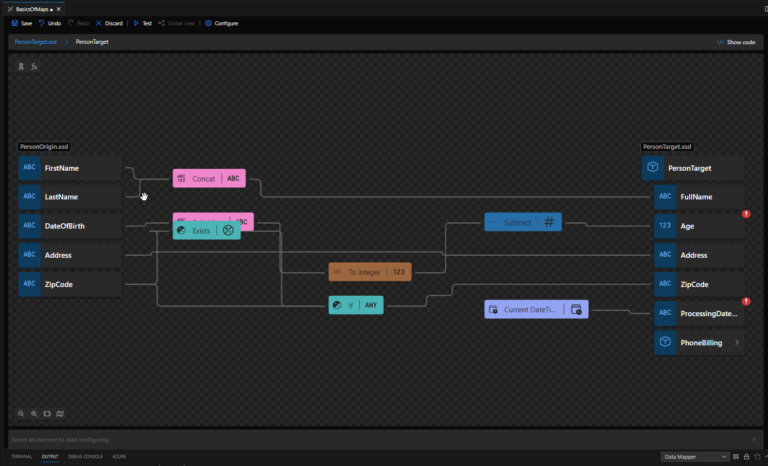
However, things didn’t go as planned. Soon after the release, the team received a large amount of negative feedback. In particular, users criticized the UI. It was not productive when working with enterprise‑grade messages, especially complex formats like EDI.
📝 One-Minute Brief
Logic Apps Standard introduces a new Data Mapper experience that improves how developers design and manage transformations. This Friday Fact explains what’s new in the Data Mapper, why it matters, and how it enhances productivity and maintainability in integration workflows.
The good news is that Microsoft listened to this feedback carefully and took action. Since February 2025, Microsoft has released a new version of this Data Mapper in public preview with a brand new and improved Data Mapper UX. It is a kind of modern BizTalk-style mapper with a code-first, schema-aware experience—and yes, it supports XSLT 3.0! And yes, it supports XSD Schemas (XML) and JSON Schemas!
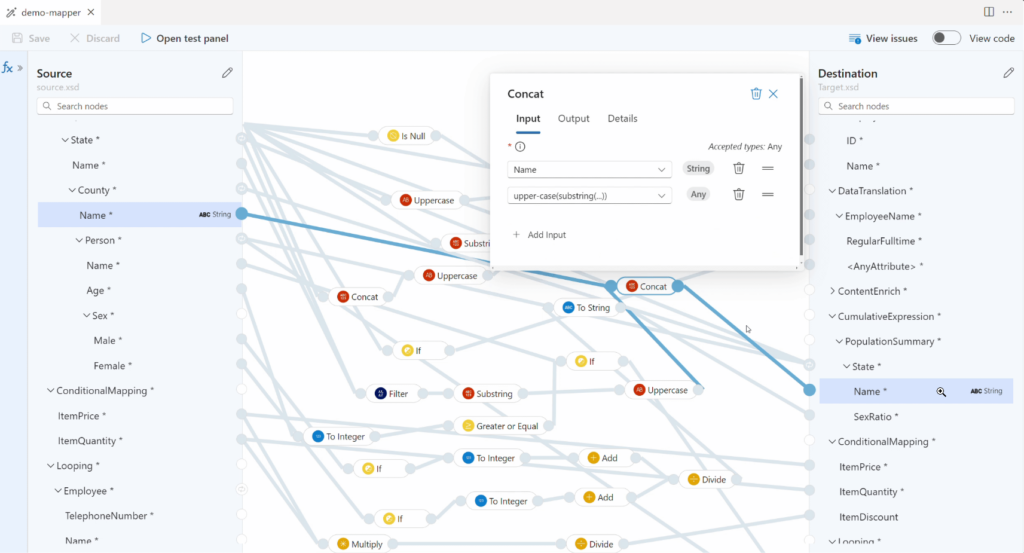
And guess what, it is available for you right now!
Wait, you are not able to see it? Don’t panic, the new UX is not enabled by default!
For you to have access to the new Data Mapper UX experience, you need to:
- In Visual Studio Code, select the Extensions option and then click on the Azure Logic Apps (Standard) extension.
- On the Extension page, click the Manage icon and select the Settings option.
- On the Settings page, go to the setting Azure Logic App Standard: Data Mapper Version, that should be set to 1. And change it to 2.
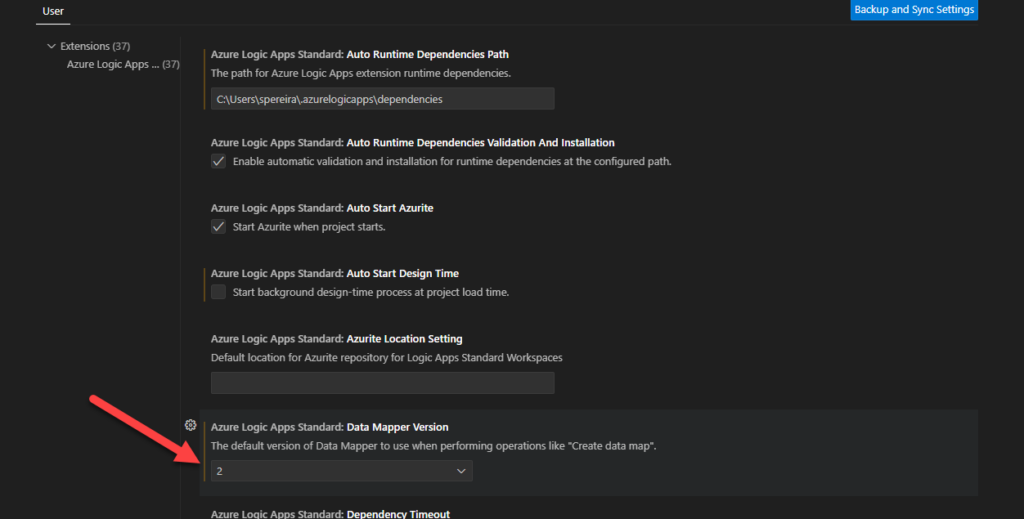
This will do the trick. Now, if you try to open an existing map or create a new one, you will open the new Data Mapper UX.
To lazy to read? We’ve got you covered! Check out our video version of this content!
Hope you find this helpful! If you enjoyed the content or found it useful and wish to support our efforts to create more, you can contribute towards purchasing a Star Wars Lego for my son!



