


In the first part of this blog post: How to get the Error Message with Logic App Try-Catch (Part I), I mentioned that when we are creating more enterprise processes, the business process will typically not be simple without, for example, conditions or nested conditions, cycles, switches, and so on. They will be more complicated, and we usually have nested conditions, conditions inside the loops, and so on. In that case, the approach explained in the first blog post will not work. For example, in this scenario:
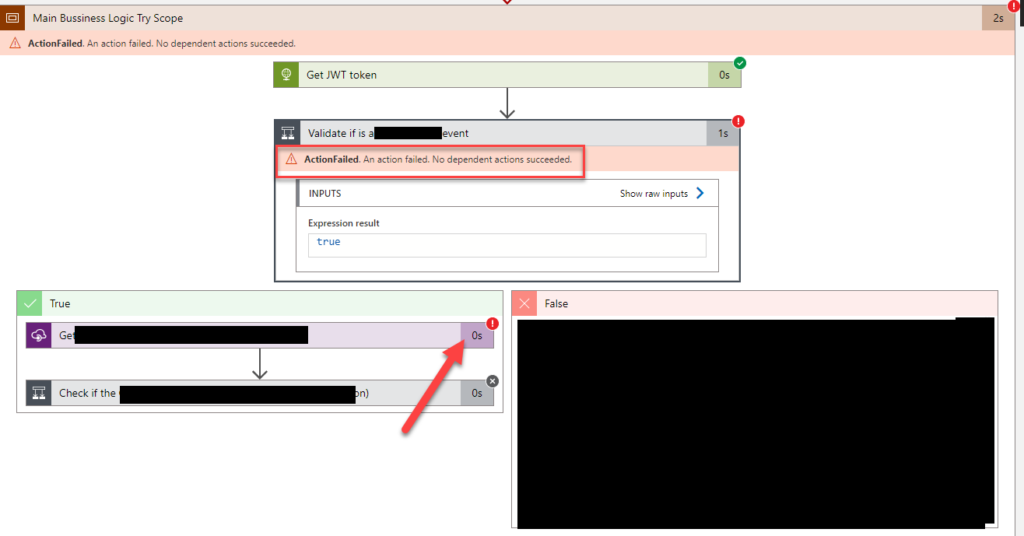
We would expect, and we want to get the error where it indeed happens – marked in the arrow on the picture. Instead, however, what we get is the top-level action description marked with the square in the picture, saying:
- ActionFailed. An action failed. No dependent actions succeeded.
Of course, this is not what we intend for. So, what are my alternatives? How do I get the correct error message?
You have at least to options on the table to address and solve this issue:
- Using a code-first approach by using an Azure Function – this is the approach we will be explaining here today.
- and using a no-code low-code approach by using a Logic App (could be a child Logic App or global Logic App in order for you not to implement the same logic in all your workflows) – this approach we will be explaining in a future blog post.
📝 One-Minute Brief
Learn how to retrieve accurate, detailed Logic App error messages by using an Azure Function that queries the Logic App run through the Azure Management REST API. This approach solves the common issue where nested scopes only return generic “An action failed” messages. It lets you extract real underlying errors—even in complex workflows—so you can log them cleanly and improve observability across multiple Logic Apps, subscriptions, and resource groups.
My dear friend Mike Stephenson wrote a blog post on this topic, and when I spoke with him and shared some ideas, he pointed me to it: Cleaner Error Message with Logic App Try-Catch.
Globally, his approach works like this:
- For this problem, he will implement a try/catch pattern in the usual way, but in the catch block, he will call a function and pass the ID for the logic app run.
- In the function, he will call the Azure Management REST API and use a filter to retrieve actions with a failed status.
- He will then loop through them (the errors), but he will remove the ones where the message is “An action failed. No dependent actions succeeded” because these are usually scope shapes with an error inside them and are just noise. And we want just the actual errors.
- For each action that is a genuine error, he will then use the properties to get the link to the message body and call it to get the underlying error message from the action.
- In the end, he will then return an array of the errors within the Logic App run.
My version follows the same principles as Mike’s. The only differences are that my version:
- Is prepared to be global across resources, subscriptions, and Logic Apps. That means that we will be passing not only the run id but optionally, we can pass the:
- Subscription ID.
- Resource name.
- Logic App name.
- And there are several improvements (I hope) in the code, like:
- Error handling.
- Different scenarios or actions may have different behaviors:
- Some of them don’t have an action[“properties”][“error”][“message”], and in these cases, we need to invoke the action[“properties”][“outputsLink”][“uri”] to get the correct error message.
- In some cases, we don’t need to perform an additional call because the error message is already present in the action[“properties”][“error”][“message”].
- and so on.
ExtractLogicAppError Azure Function
You can download the complete code for the function from GitHub. The link is below at the bottom of the blog post. As Mike’s sample, this function will also need to use a managed identity in order to call the Azure management REST API:
string logicAppHistory = System.Environment.GetEnvironmentVariable("logicAppHistory", EnvironmentVariableTarget.Process);
string defaultSubscriptionId = System.Environment.GetEnvironmentVariable("defaultSubscriptionId", EnvironmentVariableTarget.Process);
string defaultResourceGroup = System.Environment.GetEnvironmentVariable("defaultResourceGroup", EnvironmentVariableTarget.Process);

#region Set Management Azure Logic App Historic URL

if (string.IsNullOrEmpty(data.SubscriptionId))
    logicAppHistory = logicAppHistory.Replace("{subId}", defaultSubscriptionId);
logicAppHistory = logicAppHistory.Replace("{subId}", data.SubscriptionId);

if (string.IsNullOrEmpty(data.ResourceGroup))
    logicAppHistory = logicAppHistory.Replace("{rgName}", defaultResourceGroup);
logicAppHistory = logicAppHistory.Replace("{rgName}", data.ResourceGroup);

logicAppHistory = logicAppHistory.Replace("{laName}", data.LogicAppName);
logicAppHistory = logicAppHistory.Replace("{runId}", data.Runid);

#endregion

#endregion

var target = "https://management.azure.com";
var azureServiceTokenProvider = new AzureServiceTokenProvider();
string accessToken = await azureServiceTokenProvider.GetAccessTokenAsync(target);

var logicAppRunRequest = new HttpRequestMessage(HttpMethod.Get, logicAppHistory);
logicAppRunRequest.Headers.Authorization = new AuthenticationHeaderValue("Bearer", accessToken);
var result = await _client.SendAsync(logicAppRunRequest);
This is important to know because we need to configure that properly to be able to call the REST API and read the errors.
The response will be composed of the name of the action, the type of the action, status (always Failed), code, the start time, the end time, and the error message:
var item = new JObject();
item.Add(new JProperty("name", action["name"]));
item.Add(new JProperty("type", action["type"]));
item.Add(new JProperty("status", action["properties"]["status"]));
item.Add(new JProperty("code", action["properties"]["code"]));
item.Add(new JProperty("startTime", action["properties"]["startTime"]));
item.Add(new JProperty("endTime", action["properties"]["endTime"]));
item.Add(new JProperty("errorMessage", action["properties"]["error"]["message"]));
response.Add(item);
A sample of the Function response will be something like:
[
  {
    "name": "Get_secret",
    "type": "Microsoft.Logic/workflows/runs/actions",
    "status": "Failed",
    "code": "NotFound",
    "startTime": "2022-06-27T16:45:44.9740069Z",
    "endTime": "2022-06-27T16:45:45.1927622Z",
    "errorMessage": "{\"statusCode\":404,\"headers\":{\"Pragma\":\"no-cache\",\"x-ms-request-id\":\"fac7e84f-91ce-43bf-bc8c-d8e3e73c7c3b\",\"Strict-Transport-Security\":\"max-age=31536000; includeSubDomains\",\"X-Content-Type-Options\":\"nosniff\",\"X-Frame-Options\":\"DENY\",\"Cache-Control\":\"no-store, no-cache\",\"Set-Cookie\":\"ARRAffinity=f84ed6eb5a002caxxxxxxf9b20db;Path=/;HttpOnly;Secure;Domain=keyvault-xxx.azurewebsites.net,ARRAffinitySameSite=f84ed6exxxxxxxxx33f221df9b20db;Path=/;HttpOnly;SameSite=None;Secure;Domain=keyvault-xxx.azurewebsites.net\",\"Timing-Allow-Origin\":\"*\",\"x-ms-apihub-cached-response\":\"false\",\"x-ms-apihub-obo\":\"true\",\"Date\":\"Mon, 27 Jun 2022 16:45:45 GMT\",\"Content-Length\":\"355\",\"Content-Type\":\"application/json\",\"Expires\":\"-1\"},\"body\":{\"status\":404,\"message\":\"Operation failed because the requested resource was not found in the key vault.\\r\\nclientRequestId: fac7e84f-91ce-43bf-bc8c-d8e3e73c7c3b\",\"error\":{\"message\":\"Operation failed because the requested resource was not found in the key vault.\"},\"source\":\"keyvault-xxx.azurewebsites.net\"}}"
  }
]
Configure Function App managed identity and permissions
After you deploy the Azure Function, we need to:
- First, configure the function app with a system-assigned managed identity.
- On the Azure Function app, access to the Identity option under the Settings region.
- On the System assigned tab, set the status to On.
- Finally, click Save.
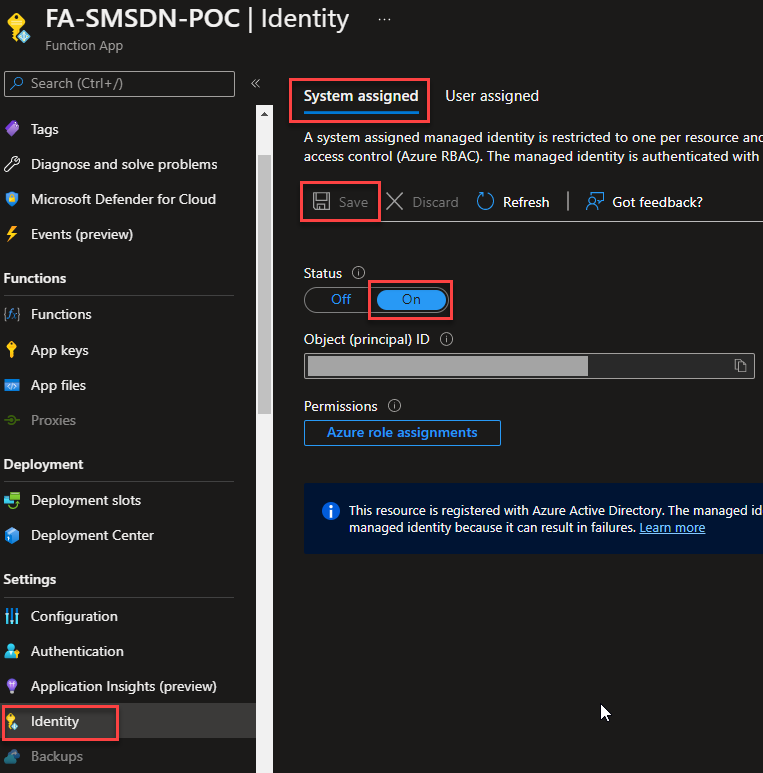
- Second, for each resource group, the function needs to have access to read the Logic App run history. We need to grant that managed identity the Logic App Operator role.
For this last step:
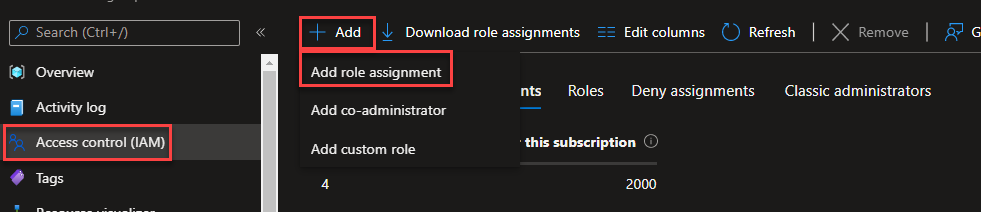
- In the Azure Portal, access the Resource Group that contains our Logic App, then select the resource we want to retrieve the error message from.
- On the Resource Group page, select the Access control (IAM) option.
- On the Access control (IAM) panel, click Add > Add role assignment.
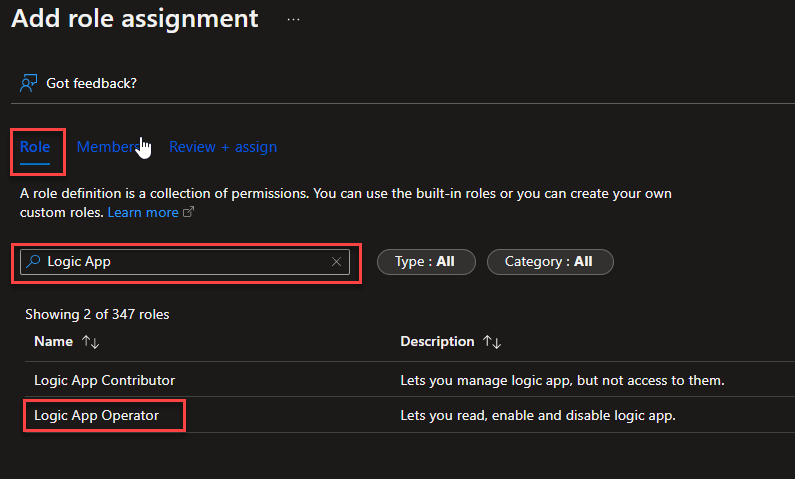
- On the Add role assignment page, on the Role tab, search for Logic App and then select the option Logic App Operator, and then click Next.
- On the Members tab, select the Assign access to be Managed identity, and from the Members:
- Select your subscription on the subscription property.
- On the Managed identity list of options, select the Function App option.
- And on the Select property, select the managed identity of our function, then click Close.
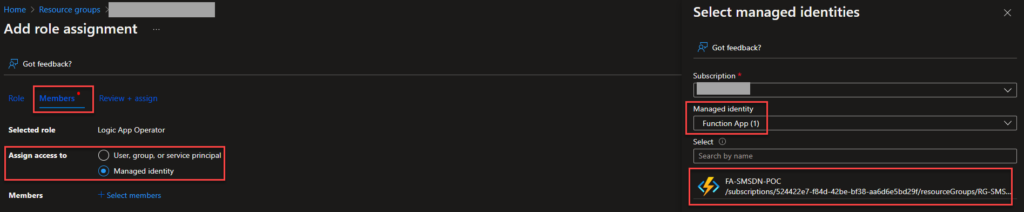
- Click Review + Assign, then click Review + Assign again.
We can now use this Function inside our Logic Apps.
Logic App Implementation
In my catch block, we can now call the previous function we created, and we will pass all the required fields necessary for the Function to work. This will pass the subscription, resource group, workflow name, and run ID as a string to the function.
In the Catch section (Scope), configure the Azure Function properly, as you see in the picture below:
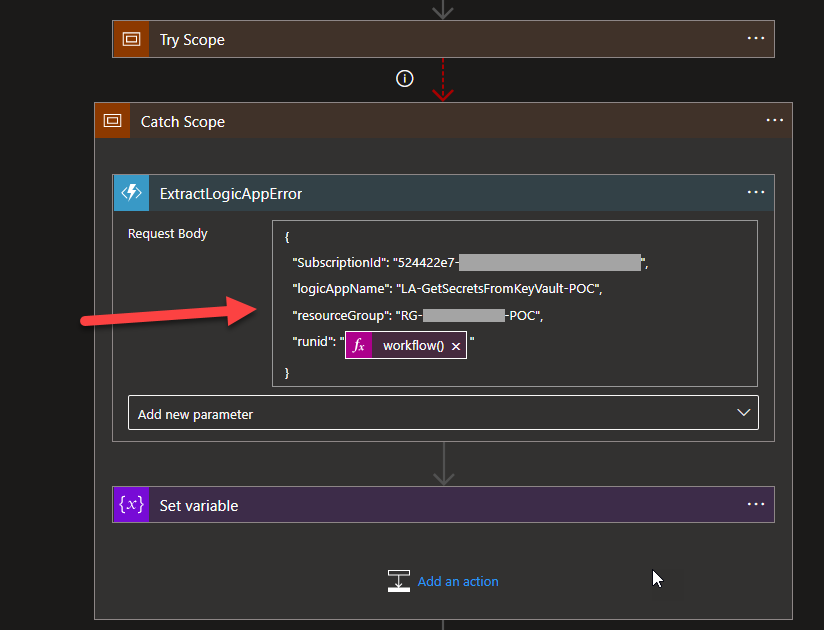
We can then send it back or log the full error descriptions of the failures. To get all the valid error descriptions, we can basically set a supporting variable with:
- @{body(‘ExtractLogicAppError’)}
Or we want to extract the first error message detail.
- first(body(‘ExtractLogicAppError’))?[‘errorMessage’]
And now you can try your business processes.
Where can I download it?
You can download the complete Azure Function source code here:
Stay tuned because I will explain how to get the correct error message using the Logic App in the third part of this blog post.
Hope you find this helpful! If you liked the content or found it useful and would like to support me in writing more, consider buying (or helping to buy) a Star Wars Lego set for my son.




Hi Sandro,
Thanks you for discussing how to extract and handle the errors in Logic App. I am new to Azure functions and not very comfortable at the moment, so I am really looking forward to how the same Part(II) can be implemented using the Logic App itself.
Have you also blogged about it? if yes can you please share the link. If not can you please create an article on how we can get the exact error message from the actions in Scope.
Thank you!