


One of the things I love about Azure Logic Apps is how easy it is to work with JSON payloads. Most of the time, after parsing a JSON document, accessing a property is straightforward:
body('Parse_JSON')?['name']
or
body('Parse_JSON')?['address']?['city']
However, things get a little more challenging when you’re dealing with a key/value structure stored inside an array, especially if you need to retrieve a value by key name rather than position.
Let’s look at a common scenario and explore a neat workaround that takes us back to the old-school integration days.
📝 One-Minute Brief
Working with JSON in Azure Logic Apps is usually straightforward until you encounter key/value structures stored inside arrays. Since Logic Apps doesn’t provide native filter() or where() expressions, retrieving values dynamically often requires additional actions, loops, or hardcoded indexes. In this article, I demonstrate a simple and elegant workaround by converting JSON into XML and leveraging XPath expressions to dynamically retrieve values with a single expression, keeping your workflows cleaner and easier to maintain.
The challenge
Imagine you have the following JSON payload:
{
  "properties": [
    {
      "property": "endpoint",
      "value": "my-fileshare-uri"
    },
    {
      "property": "shareName",
      "value": "Name_Files_Share"
    },
    {
      "property": "folder",
      "value": "folder-name"
    },
    {
      "property": "accessKey",
      "value": "my-access-key"
    }
  ]
}
Let’s say you need to retrieve the value associated with the property folder.
If the array position is fixed, the solution is simple:
body('my-action')?['properties'][3]?['value']
This would return: folder-name.
Unfortunately, this approach has a major drawback: it assumes the property you need will always be at the same index in the array.
If another property is inserted or removed before folder tomorrow, your expression will break or return incorrect values.
The missing features
At this point, many developers naturally start looking for expressions such as:
filter()
where()
Ideally, I would love to use an expression something like this:
first(filter(triggerBody()?['properties'], equals(item()?['property'], 'folder')))?['value']
Unfortunately, Logic Apps doesn’t provide native expressions that allow you to dynamically search an array of objects and return the matching element.
As a result, most solutions involve:
- Filter Array actions
- Foreach loops
- Variables
- Additional Compose actions
While these approaches work, they can quickly become overkill, especially when you need more than a single value.
Going Old-School
Sometimes the best solution is to revisit techniques we’ve been using for years in the integration world.
Since Logic Apps provides excellent support for XML and XPath, we can convert the JSON payload into XML and then use XPath to query it dynamically.
The following expression does exactly that:
xpath(
    xml(
        addProperty(
            json('{}'),
            'root',
            triggerBody()
        )
    ),
    'string((/root/properties[property="folder"]/value)[1])'
)
The result will be exactly the same: folder-name. But position-free.
Of course, if I need to access several properties, I don’t want to always be creating an XML message at runtime, so I can make use of a compose action to generate my properties XML message
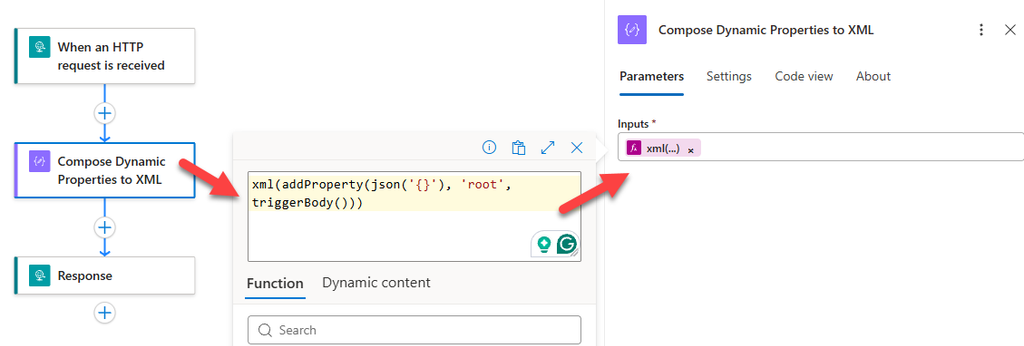
and then just apply the XPath expression for each key i want to read
xpath(outputs('Compose_Dynamic_Properties_to_XML'), 'string((/root/properties[property=\"folder\"]/value)[1])'
)
Understanding the expression
Let’s break it down.
Step 1: Create a root element
The xml() function requires a single root element. Since our JSON payload doesn’t naturally have one suitable for XPath evaluation, we create one using:
addProperty(
    json('{}'),
    'root',
    triggerBody()
)
This generates something similar to:
{
  "root": {
    ...
  }
}
Step 2: Convert JSON to XML
Next, we convert the newly created JSON structure into XML:
xml(...)
The generated XML will look similar to:
<root>
  <properties>
    <property>endpoint</property>
    <value>my-fileshare-uri</value>
  </properties>
  <properties>
    <property>shareName</property>
    <value>Name_Files_Share</value>
  </properties>
  <properties>
    <property>folder</property>
    <value>folder-name</value>
  </properties>
  <properties>
    <property>accessKey</property>
    <value>my-access-key</value>
  </properties>
</root>
Step 3: Query using XPath
Finally, we use XPath to locate the correct element:
string((/root/properties[property="folder"]/value)[1])
This expression says:
- Find all
propertieselements. - Select the one whose
propertychild element equalsfolder. - Return its
value. - If multiple matches exist, return only the first one.
Why this approach is useful
This trick becomes particularly valuable when:
- The order of properties is not guaranteed.
- You want to avoid multiple Logic Apps actions.
- You’re processing configuration-driven payloads.
- You’re migrating integration solutions where XPath knowledge already exists.
- You need a single expression that can dynamically locate a value.
Final thoughts
Although Logic Apps has evolved significantly over the years, there are still scenarios where querying JSON arrays can be surprisingly cumbersome. The lack of native filtering expressions such as filter() or where() means that even simple lookup operations may require additional actions or loops.
Fortunately, Logic Apps still gives us access to one of the most powerful technologies in the integration world: XPath.
By converting the JSON payload into XML and leveraging XPath expressions, you can perform dynamic lookups in a single expression, keeping your workflows cleaner, simpler, and easier to maintain.
Sometimes, the best solution isn’t the newest one. Sometimes, it’s simply going old-school. 😉
Hope you find this helpful! If you liked the content or found it useful and would like to support me in writing more, consider buying (or helping to buy) a Star Wars LEGO set for my son.



