


Yesterday, we published a blog post explaining how to control which version sets the extractor pipeline retrieves. We achieved this by configuring the version set filter in the extractor YAML file.
However, the extractor pipeline also processes another resource by default: groups. It extracts all group values even though official documentation does not mention this behavior. You can find these group settings in your API Management instance under Developer portal > Groups.

Once again, the APIOps configuration file acts as a YAML‑based filter. It controls which Azure API Management artifacts the pipeline extracts into your Git repository. Teams can use this file to selectively extract APIs, products, backends, and other APIM elements. This approach lets them manage different areas of their API landscape independently.
However, the example YAML file included in the repository is slightly outdated. It does not include all the properties that the extractor currently supports.
📝 One-Minute Brief
When using APIOps with Azure API Management, extracting all groups can introduce unnecessary noise and complexity. This post explains how to filter group extraction, why it matters for governance, and how to keep your APIOps repositories clean, secure, and easier to manage.
Right now, these are the only options that are shown in the official GitHub: https://github.com/Azure/apiops.
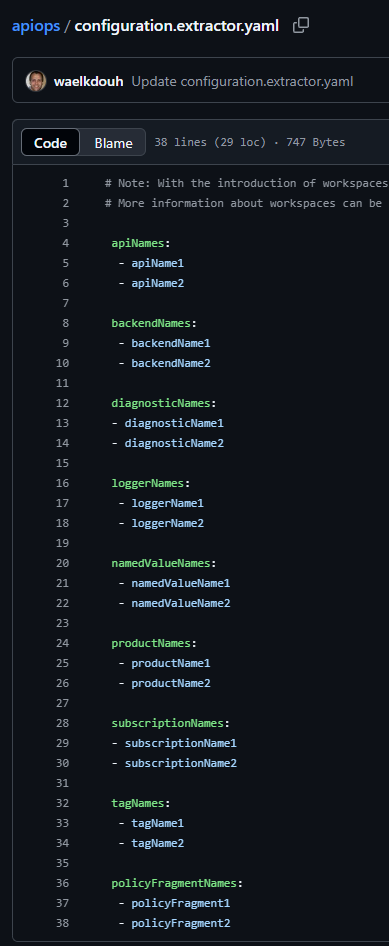
After running the extract pipeline, you’ll notice that all Group settings appear in a folder named groups inside your repository. Later, the pipeline deploys this folder to other environments. However, I don’t want to extract groups in every project or API. Instead, I may want to isolate this configuration.
Once again, the documentation does not define groups as a variable in the configuration file. Fortunately, the example YAML file on GitHub is outdated. To fix this, we only need to add the missing variable to the configuration file.
 groupNames:
  - ignore
Note:
- You cannot leave it empty. Otherwise, it is the same as not having the groupNames section, and that basically says to the extractor to get all the data of the groups.
- To discard the fetch of the groups, you need to put a dummy string inside the groupNames section.
- I like to use the ignore string.
- If you want a specific group, you add the group name in the groupNames section.
If, for example, we don’t want to extract any group, then we add the following code:

After extracting, we get our final result and eliminate any group info in the repo (the groups will still be present in the API Management):

Hope you find this helpful! If you enjoyed the content or found it useful and wish to support our efforts to create more, you can contribute towards purchasing a Star Wars Lego for my son!




What if I just set it blank?
It doesn’t work, it will get everything
How we can restrict policy.xml file since its a global policy file which we dont want to deploy everytime..