


Welcome again to another Logic Apps Best Practices, Tips, and Tricks. After starting this series of posts on my blog, I ended up publishing most of the tips in the Serverless360 blog post. But from now on, they will be back on my blog!
Today, Luis Rigueira will speak about another helpful Best Practice, Tips, and Tricks that you must consider while monitoring and managing your business processes (Logic Apps): How to resubmit multiple Logic App Consumption runs at once?
In the realm of working with Logic Apps Consumption, encountering timeouts or other failures is not uncommon, especially when handling a high volume of requests across multiple services. Often, these problems aren’t due to issues with the process itself but rather to server downtime or similar causes. This can lead to a significant number of failed runs, where ‘failed’ here refers to the logic app’s inability to process those requests due to those problems.

📝 One-Minute Brief
Logic App Consumption allows you to resubmit multiple failed runs at once directly from the Azure Portal. This tip explains how to use this feature to quickly recover from transient failures and save time during operational troubleshooting.
How do you resubmit multiple Logic App Consumption runs at once?
Sometimes, to better see the issues, we click the Run History option under the Development Tools section and filter them to needed.
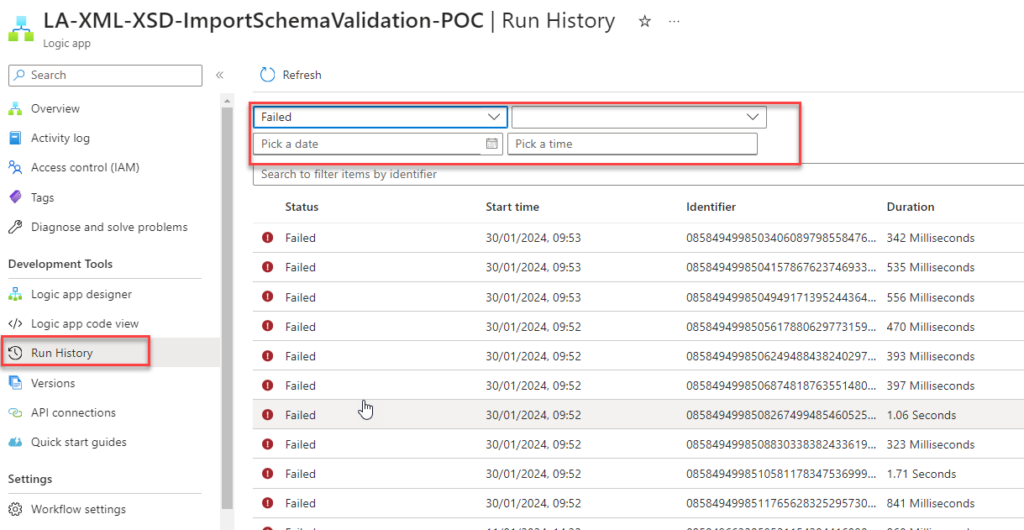
The main problem is that, here, on this page, we have to submit the runs one by one, which will consume a lot of time. It is a tedious and sometimes confusing process, reaching a point where we don’t even know which ones we have already resubmitted and which remain to be resubmitted.
And if I tell you, there is a better way to archive this through the portal!
I don’t know whether this is a feature that was recently introduced or has been there for a while, but it will significantly ease handling these failed runs. If you’re not yet familiar with this feature, let me guide you through it. It’s quite straightforward:
- Simply go to the Overview page of the relevant Logic App.
- On the Overview page, under the main properties, select the Runs history tab to present the detailed list of the last runs.
- From there, you can use the filter option to narrow your search, for example, by failed runs.
- Additionally, you have the ability to quickly select all visible runs using the checkbox on the left side of the identifier. This makes the process even more user-friendly and efficient.
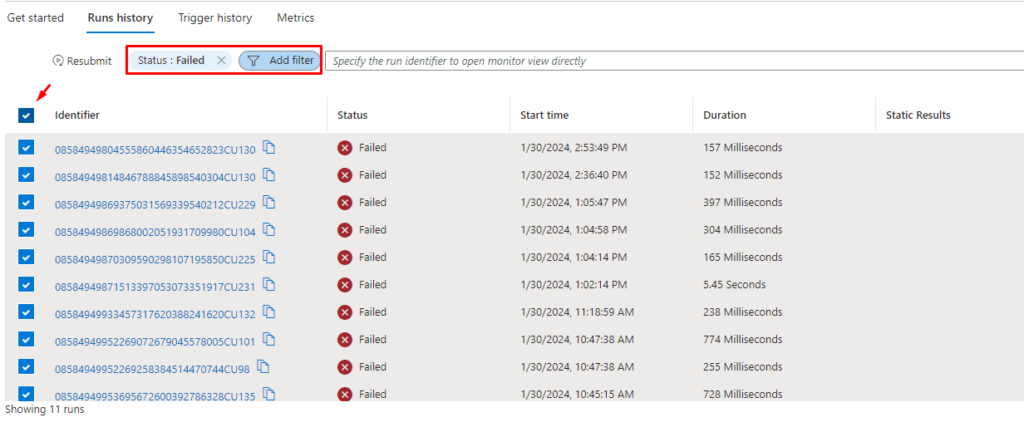
- Select all the runs you like to resubmit. This feature includes a convenient drag-and-select option to choose the runs you need, but you can also select all or select them one by one.
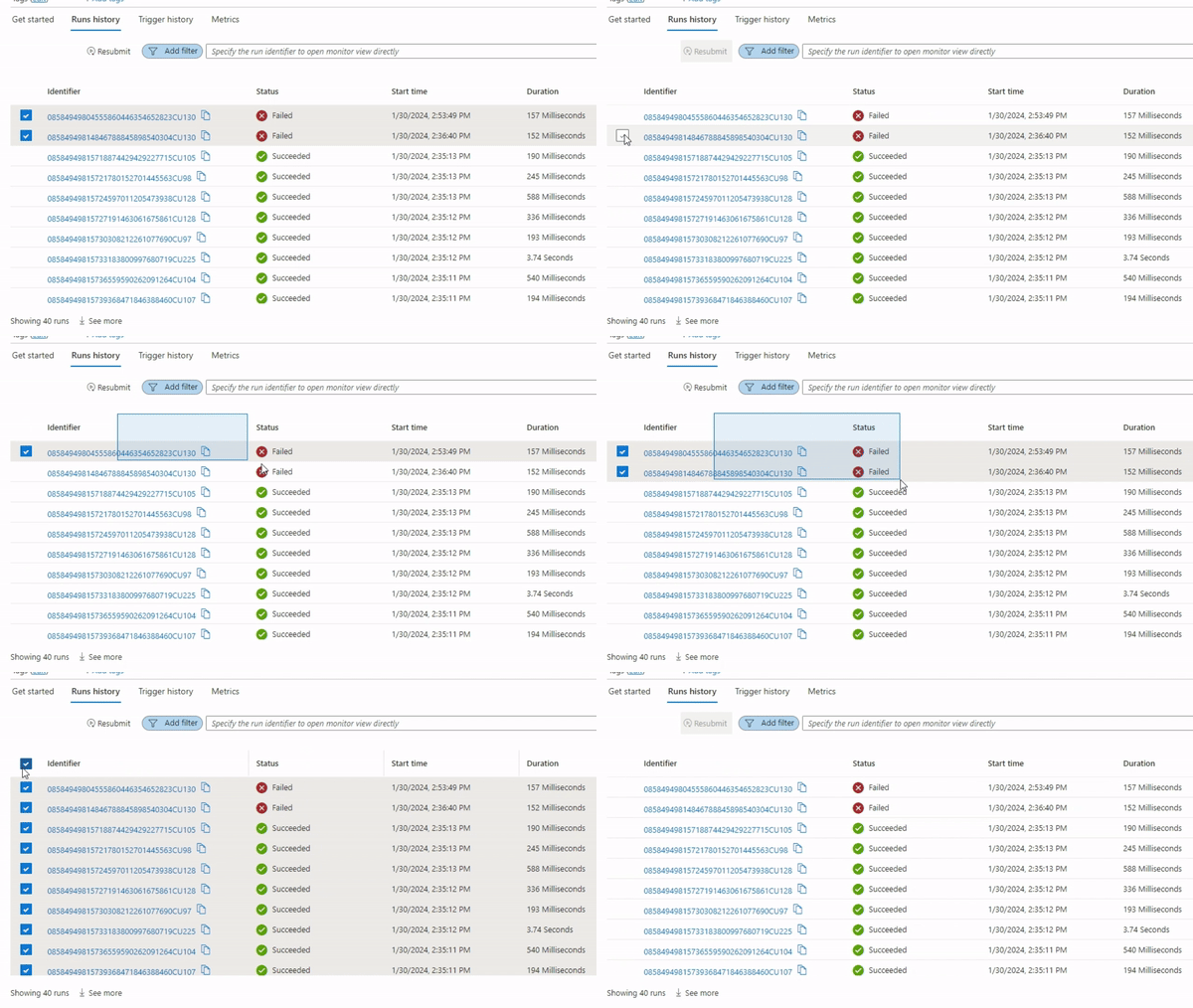
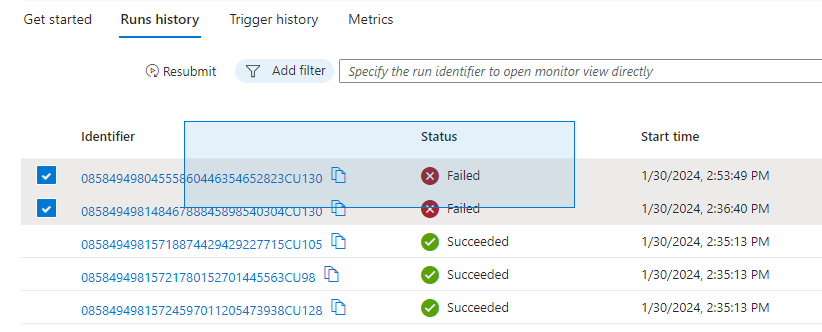
- Once selected, click on Resubmit.
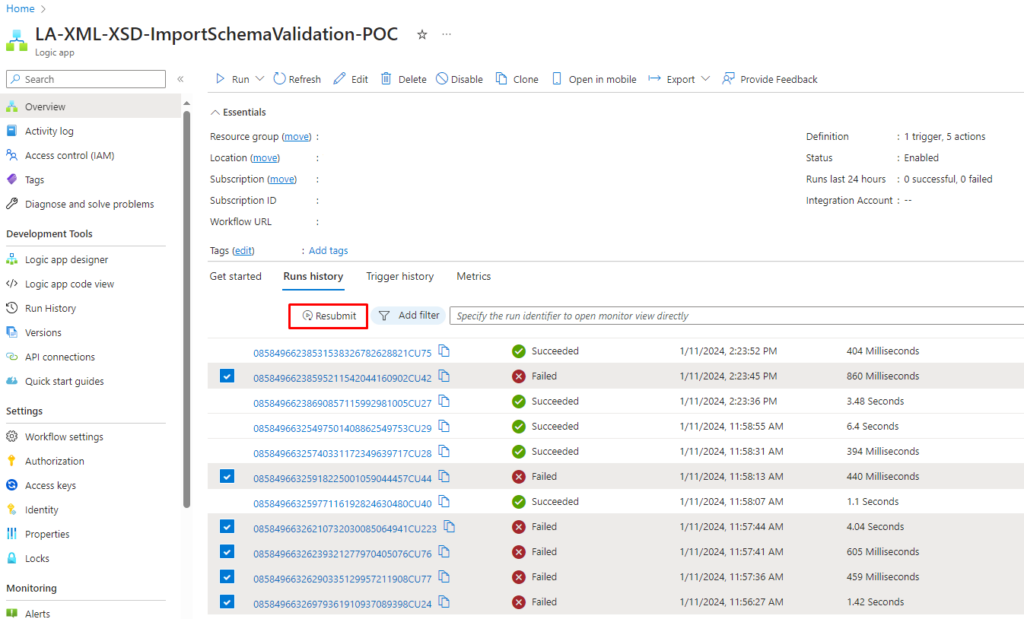
This feature allows simultaneous resubmission of multiple runs, which is quite a time-saver.
I hope you enjoy this developer tip and stay tuned for the following Logic App Best practices, Tips, and Tricks.
Hope you find this helpful! So, if you liked the content or found it useful and want to help me write more, you can help us buy a Star Wars Lego for Sandro’s son!




I believe this does work with standard logic app workflows as well , but the exception being that when we load too many runs it does not allow us to drag and select multiple runs at a time.